How to Wipe Laptops Securely Before Resale
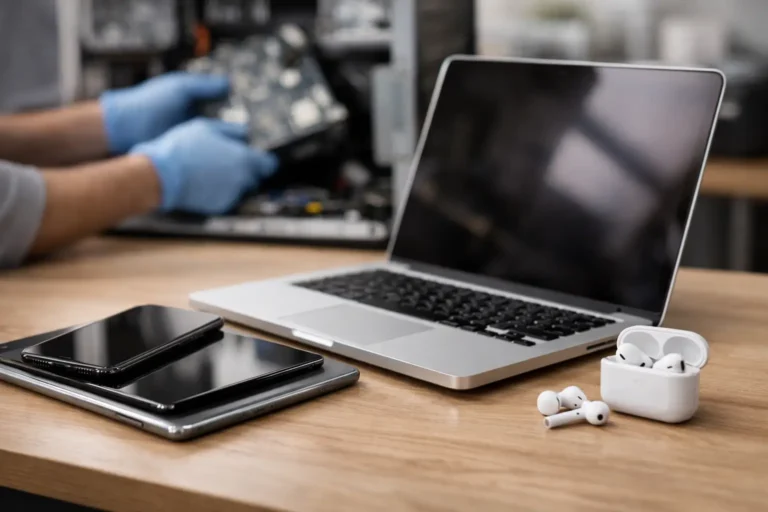
A laptop can look ready for resale while still holding browser sessions, saved passwords, recovery keys, customer files and device-management records. That is why knowing how to wipe laptops securely is not the same as deleting folders or performing a quick factory reset. The correct process depends on the operating system, storage type, encryption status and whether the device belongs to a managed business or school estate.
For a single personal device, the built-in reset tools may be suitable when used correctly. For business fleets, secure erasure needs to be part of a controlled IT asset disposition process, with records that show what was wiped, how it was wiped and whether the device passed verification before it is redeployed or sold.
Start with the device lifecycle, not the reset button
Before erasing anything, decide what will happen to the laptop next. A device being redeployed internally may need a standard corporate Windows image and management enrolment. A device sold to a staff member, reseller or refurbishment partner needs all organisational data removed and every management connection released. Equipment at end of life may require physical destruction of failed storage media where secure software erasure is not possible.
Back up legitimate data first. This should be a deliberate handover, not a full copy of every user profile. Identify business documents, licensed software records, encryption recovery keys and any files subject to retention requirements. Then confirm that the data is available in its approved location before the laptop is wiped.
For managed estates, remove the device from relevant platforms at the right point in the process. This can include Microsoft Intune, Windows Autopilot, Apple Business Manager, mobile device management platforms and Chrome Enterprise. A laptop can be technically erased but still tied to an organisation through Activation Lock, Autopilot registration or enterprise enrolment. That creates friction for the next user and can reduce resale value.
Understand what secure erasure means
A secure wipe aims to make previously stored data unrecoverable by normal forensic or recovery methods. The method matters because modern laptops use different drive technologies.
Traditional hard disk drives store data magnetically. Overwriting the drive can be effective, although the appropriate process depends on the security standard and the sensitivity of the data. Solid-state drives are different. SSDs use wear levelling, which means software cannot always overwrite every physical memory location simply by writing data repeatedly. Old advice to run multiple overwrite passes is often slow, unnecessary and less reliable for SSDs.
For encrypted drives, cryptographic erasure is usually the most efficient route. If the data was protected with full-disk encryption and the encryption keys are securely destroyed or replaced, the remaining data is unreadable. This is why confirming that BitLocker or FileVault was active before disposal is valuable. It does not remove the need to reset the device correctly, but it adds a strong layer of protection.
For higher-risk data, regulated environments or large device collections, use recognised erasure software that supports the drive type and produces an auditable report. The report should identify the asset, serial number, erasure method, result, date and operator or system record. A reset screen is not an audit trail.
How to wipe Windows laptops securely
On a current Windows laptop intended for personal resale or donation, first sign out of applications and remove the device from your Microsoft account where appropriate. Check that important files are backed up, then confirm BitLocker status. In Windows, this is usually available through Settings or by searching for Manage BitLocker.
Use Reset this PC, select Remove everything, then choose the option to clean data rather than simply remove files. If prompted, select all drives when the laptop contains more than one internal drive. The cleaning option takes longer, but it is more appropriate when the device is leaving your control.
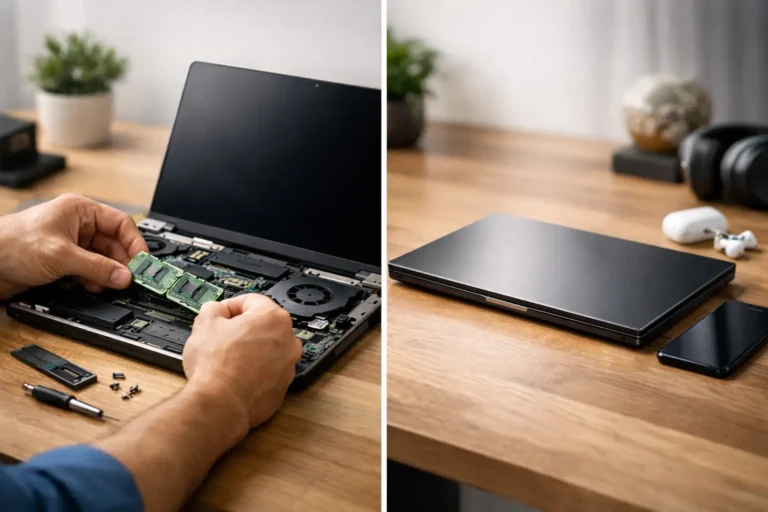
Once the reset completes, stop at the initial Windows setup screen. Do not create a new user account or reconnect the device to a personal account. The next owner should complete setup themselves, or the laptop should move into a controlled refurbishment workflow for testing, grading and installation.
For business equipment, this built-in route may not be enough. A Windows reset can be practical for low-risk devices with verified BitLocker encryption, but organisations should assess their data classification, contractual duties and internal disposal policy. Certified erasure tooling, cryptographic erase commands or physical media destruction may be required. The right choice depends on the device, the storage hardware and the assurance level needed.
Check BIOS, firmware and management settings
Before release, remove BIOS or UEFI administrator passwords, where authorised, and ensure there are no boot restrictions that would prevent testing or reuse. Clear any absolute persistence or tracking configuration if it remains linked to the previous owner. These controls are useful while the laptop is in service, but they should not become an obstacle for the next lifecycle stage.
Also check for Windows Autopilot registration. If it is still assigned to the previous organisation, a new user may be forced into that organisation’s setup process after the wipe. Removing the hardware hash or device record is a separate administrative task from erasing the drive.
Securely erase Apple Mac laptops
Apple Silicon Macs and many Intel Macs with a T2 security chip support Erase All Content and Settings. When available, this is the preferred option for preparing a Mac for resale. It removes users, settings, Apple Wallet information and activation data while preserving the installed operating system. Sign out of iCloud first and disable Find My Mac to avoid Activation Lock preventing legitimate reuse.
On older Intel Macs, use macOS Recovery and Disk Utility to erase the internal drive, then reinstall macOS. The exact options vary by model and macOS version. For SSD-based Macs, modern encryption and the erase process are generally more appropriate than attempting repeated overwrite passes.
As with Windows devices, end at the setup assistant. That confirms the Mac is ready for its next user without attaching it to a new Apple ID. For organisational estates, release the device from Apple Business Manager and the organisation’s management platform as part of the same workflow.
Wiping Chromebooks before handover
For an unmanaged Chromebook, use Powerwash from Settings to reset it to factory state. This removes local user profiles and returns the device to its first-use setup screen. Ensure that files stored locally have been copied to an approved location first, as Powerwash removes local data.
Managed Chromebooks need an additional check. Deprovision or transfer the device in the Google Admin console according to the organisation’s policy. If it remains enrolled, the next user may find it automatically re-enrols under the previous organisation. This is especially relevant for education technology estates, where devices are frequently reassigned, traded in or refurbished in batches.
Do not overlook removable and hidden storage
The laptop itself is only part of the data picture. Check for SD cards, USB receivers with storage, removable drives and installed secondary SSDs. Some business laptops have WWAN modules or other components that may retain identifiers or require separate handling. Remove asset labels only after recording the serial number and final disposition.
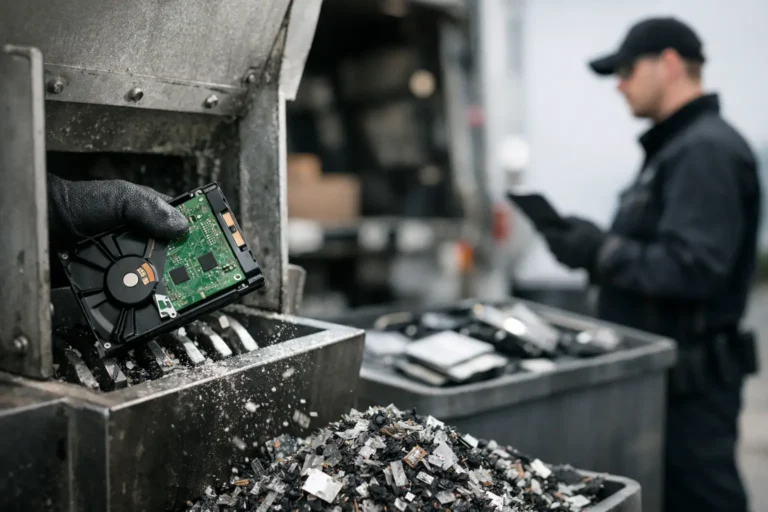
Failed drives require particular care. If a laptop will not boot, a reset cannot prove that the storage has been erased. The drive should be removed where possible and processed separately using suitable erasure equipment. If it cannot be securely erased or verified, physical destruction through an approved route may be the appropriate outcome. A non-working laptop can still contain fully accessible data.
Verify the wipe and record the result
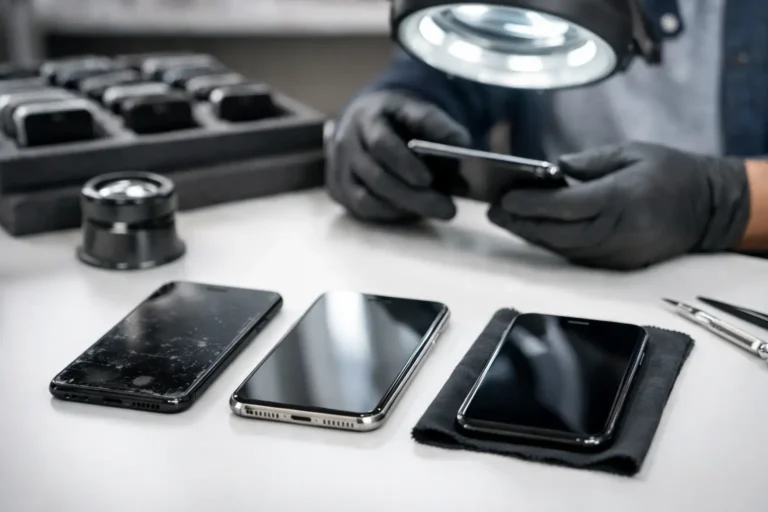
Secure erasure is complete only when it has been verified. For a consumer device, this may mean confirming that the laptop starts at the operating system’s initial setup screen and that no previous user account, files or management lock remains. For an organisation, verification should be recorded against the asset register.
A practical record includes the make and model, serial number, asset tag, drive type, erasure method, date, result and final destination. Add any exceptions, such as a failed drive sent for destruction. This gives IT teams a defensible chain from collection through erasure, refurbishment, redeployment or resale.
Refurb X Connect approaches used business hardware as a lifecycle asset, not a disposable device. Proper data removal protects the outgoing owner, while accurate testing, configuration and records make the next deployment more reliable.
A secure wipe is not just the final task before a laptop changes hands. Done properly, it is the point where private data stops travelling with the hardware and the device becomes safe to use again.