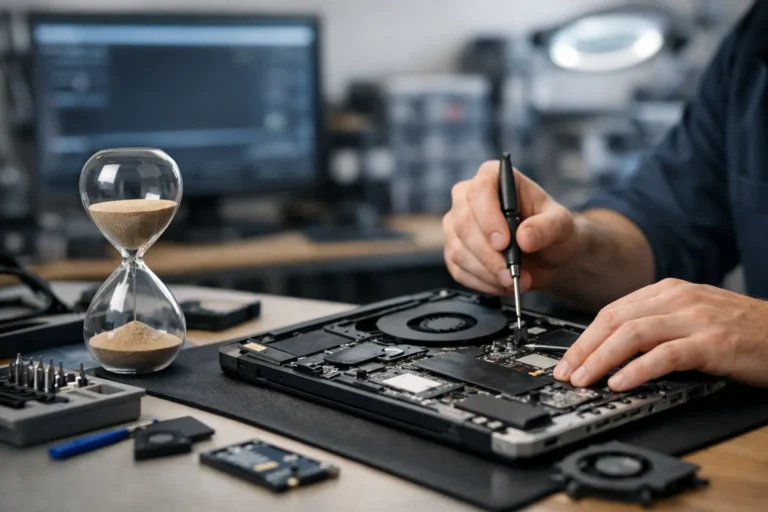

SSD Health Checks for Refurbished Devices
A laptop can boot normally, pass a quick functional test and still carry an SSD close to failure. That is why SSD health checks belong in every refurbishment, redeployment and IT asset disposition process. Storage condition affects more than performance. It affects data security, user downtime, warranty exposure and whether a device is genuinely suitable for its next owner.
For organisations handling business laptops, desktops and tablets at volume, a consistent SSD assessment provides evidence for keep, replace or recycle decisions. It also prevents a common mistake: treating drive capacity as a measure of remaining value. A 512GB SSD with high wear, media errors or warning flags may be a poorer choice than a lower-capacity drive with a clean diagnostic record.
What SSD health checks actually show
Solid-state drives do not wear in the same way as mechanical hard drives. There are no moving heads or spinning platters. Instead, NAND flash cells have a finite number of programme and erase cycles. The controller spreads writes across the available flash, manages spare capacity and moves data away from weaker cells where possible.
SSD health checks read the information held by that controller, usually through SMART data. SMART stands for Self-Monitoring, Analysis and Reporting Technology. It is useful, but it is not a simple pass or fail certificate. Different manufacturers report different attributes, and the meaning of a percentage health figure can vary between models.
The most useful readings are usually the drive’s overall health status, percentage used or remaining life, total host writes, available spare, media and data integrity errors, unsafe shutdowns, operating temperature and critical warning status. On SATA SSDs, the labels can be less consistent than on NVMe drives. NVMe health reporting is generally more standardised, though it still needs interpretation in the context of the drive’s age, capacity and workload.
A drive showing 92% health is not automatically better than one showing 88%. A low-write office laptop may have years of service left at either figure. Conversely, a drive that reports 98% health but has recurring uncorrectable errors deserves investigation. Health percentage is one input, not the whole decision.
Why SSD health checks matter in refurbishment
Refurbished technology needs to be assessed for its next use, not simply its ability to complete a test today. A drive may have been used in a heavily written environment, such as a virtual desktop, point-of-sale system or engineering workstation, before entering the refurbishment stream. Its outward condition will not reveal that history.
For a professional refurbishment workflow, SSD diagnostics support three practical outcomes. First, they identify drives that should be replaced before a device is listed or redeployed. Second, they allow valid drives to remain in service, avoiding unnecessary component replacement. Third, they create a repeatable quality record that supports grading, warranty handling and fleet planning.
This matters particularly for schools and businesses that need predictable devices. A failed SSD can interrupt an exam session, delay a new starter or leave a remote worker without a usable machine. Replacing a marginal drive during refurbishment is usually simpler and less disruptive than arranging recovery after deployment.
There is also a circular economy benefit. Extending the life of a business-class laptop is only sustainable when the result remains dependable. Keeping an SSD purely to avoid replacement can create avoidable e-waste later if it fails shortly after resale. The right outcome is not to retain every original component. It is to retain viable hardware and replace parts that compromise reliability.
A practical SSD assessment process
SSD condition should be checked early in the intake process, before an operating system is reinstalled and before a device is allocated for resale, redeployment or parts recovery. A standard process reduces decisions based on appearance or assumption.
1. Identify the drive and its interface
Record the manufacturer, model, serial number, capacity, firmware version and connection type. Confirm whether the device uses SATA, M.2 SATA or NVMe. M.2 describes the physical form factor, not necessarily the storage protocol, so this distinction matters when selecting a replacement or interpreting performance results.
Check that the reported capacity matches the installed component and that the firmware is recognised correctly. Unexpected capacity readings, intermittent detection or firmware anomalies can indicate a drive that needs further testing rather than routine processing.
2. Read SMART and NVMe health data
Use a suitable diagnostic tool to collect the raw health report. On Windows devices, a specialist SMART utility or manufacturer diagnostic often provides clearer detail than a basic system status message. For mixed fleets, command-line tools can support consistent capture across batches. Apple Mac devices and Chromebooks may expose health data differently, so diagnostic methods should match the platform.
Look first for critical warnings, error logs and uncorrectable data errors. These carry more weight than a broad health score. Then review percentage used, available spare and host writes against the drive’s expected endurance. If the manufacturer’s endurance rating is available, total bytes written can be compared with its rated TBW value, meaning terabytes written.
TBW is not an expiry date. It is a useful warranty and endurance reference point. A drive below its rated TBW can still fail, while one above it may continue working. The wider diagnostic picture is what matters.
3. Test stability, not just speed
A quick benchmark can show whether a drive is performing far below expectation, but speed alone is not proof of good health. Thermal throttling, a nearly full drive, encryption overhead and the host system can all affect results.
A better approach is to combine diagnostic data with a controlled read and write test where appropriate. Watch for freezes, connection drops, repeated retries, error messages or large performance swings. In enterprise hardware, also inspect the connector, M.2 retention point and any thermal pad or heatsink arrangement. Poor contact and excess heat can imitate a failing SSD.
Avoid unnecessary destructive testing on a drive that contains client data. Asset handling procedures should protect data at every stage. Diagnostics can be completed before secure erasure, but any information obtained should be limited to the device’s technical state rather than its user content.
4. Apply a clear replacement threshold
There is no single health percentage that suits every fleet. Replacement criteria should reflect device age, warranty period, user role and the cost of failure. A drive supporting a critical worker or a long-term managed deployment warrants a more cautious threshold than one intended for short-term internal use.
Replace an SSD when it reports a critical warning, repeated media errors, uncorrectable errors, unstable behaviour or a clear end-of-life indicator. Consider replacement when remaining life is low enough that the drive is unlikely to support the intended warranty period. Also replace drives with incompatible capacity or performance where the device’s target use requires more.
The decision should be documented. A consistent pass, monitor or replace status helps IT teams forecast stock requirements and prevents a marginal drive being moved between devices without proper review.
Data erasure and SSD condition are separate controls
A healthy SSD is not necessarily a securely erased SSD, and a securely erased SSD is not necessarily fit for reuse. Both checks are required in a responsible ITAD workflow.
SSDs manage data internally through wear levelling and over-provisioned flash. For that reason, conventional overwrite methods do not always provide the assurance expected for every reuse or disposal scenario. Approved sanitisation methods, such as a supported secure erase, NVMe sanitise command or verified cryptographic erase, should be selected according to the drive, encryption state and organisational data policy.
After erasure, the drive should be checked again for correct detection and basic stability before Windows, ChromeOS or another supported operating system is installed. This confirms that the storage component remains suitable after processing and that the device can complete a normal configuration cycle.
Common mistakes when reviewing SSD health
The first mistake is relying on a single green status label. Many tools simplify complex SMART data into Good, Caution or Bad. That is useful for triage, but it should not replace a review of errors, usage and behaviour.
The second is replacing every SSD with a non-zero wear reading. Flash wear is expected. A carefully used enterprise SSD can remain appropriate for refurbished resale even after substantial service, provided its diagnostics, performance and expected remaining life meet the required standard.
The third is ignoring firmware and heat. Some apparent drive faults are caused by outdated firmware, unstable power, poor cooling or a host issue. Testing a known-good drive in the same device can help separate an SSD problem from a system-level fault.
Finally, do not assume that an SSD with no user files has no data risk. Deleted data and hidden areas can remain recoverable without proper sanitisation. Condition testing and data erasure should be controlled as connected but distinct stages.
Make storage condition part of lifecycle planning
For individual buyers, an SSD report offers reassurance that a refurbished laptop has been assessed beyond its cosmetic grade. For organisations, the value is greater: health data can inform refresh timing, spares planning and redeployment choices across a fleet.
Refurb X Connect treats component assessment as part of the wider device lifecycle, alongside secure data handling, functional testing and configuration. The aim is straightforward: retain hardware where it remains dependable, replace it where risk outweighs value, and keep each device ready for productive use.
A reliable refurbished device is not defined by how quickly it powers on. It is defined by whether its components can support the work expected of them. Regular, documented SSD health checks make that judgement clearer before a user has to discover the answer the hard way.