Wiping Laptops Properly: What “Secure” Means
Most data leaks from retired laptops are not sophisticated hacks. They are ordinary devices leaving a building with ordinary mistakes still on the drive: a quick factory reset, a deleted user profile, or a Windows reinstall that never touched the underlying blocks.
If you are managing a fleet refresh, a school rotation, or a trade-in programme, secure data wiping is not a single button. It is a decision about risk, hardware type, proof, and what happens next – redeploy, resell, or recycle.
Secure data wiping for laptops: what you are trying to achieve
The goal is not “make files disappear from File Explorer”. The goal is to make recovery impractical, even for someone using professional tools.
On traditional hard drives (HDDs), data can often be recovered after deletion because the drive still contains the underlying magnetic patterns until they are overwritten. On solid state drives (SSDs), the picture changes: wear levelling and internal controller behaviour can mean that repeated overwrites do not reliably touch every physical cell.
That distinction matters. A method that is strong for an HDD can be weak, slow, or unnecessary for an SSD. “Secure” depends on the drive technology, the sensitivity of the data, and whether you need audit-grade evidence.
Why factory reset is not a wipe
Factory reset is designed to get a device usable again, not to protect your organisation.
A reset typically removes user accounts, clears settings, and reinstalls an operating system image. It may delete references to files rather than the data itself. Even when the system formats the drive, many formats are quick formats that do not overwrite. That is fine for performance. It is not fine for decommissioning.
If you are handing the laptop to a new employee inside the same controlled environment, you might accept a lower bar. If you are sending it off-site, selling it, donating it, or returning it via trade-in, you need a wipe method that is designed for data disposal.
Choose the right approach: HDD, SSD, and encrypted devices
HDDs: overwrite-based wiping is still valid
For hard drives, a controlled overwrite process is a practical approach. A single pass can be sufficient for most business scenarios when done correctly with a recognised tool and verified afterwards. Multiple passes can be used where policy demands it, but do not assume “more passes” automatically equals “more secure” in a modern risk model. It mainly adds time.
The key is repeatability and proof: the tool should record what it did, to which drive, and whether verification passed.
SSDs: prefer secure erase or crypto-erase
SSDs complicate traditional overwriting because the controller decides where data is written. You can run an overwrite and still miss cells that previously stored sensitive data.
For SSDs, the preferred options are:
- Manufacturer or controller-level secure erase, where supported, which instructs the drive to erase internally.
- Crypto-erase where the drive is hardware-encrypted: destroy the encryption key and the data becomes unreadable.
Both approaches can be faster than a full overwrite and, when properly executed, more reliable for SSD media.
BitLocker and full-disk encryption: strong, but not a free pass
If the laptop drive is encrypted (for example with BitLocker), that is good practice. Encryption reduces exposure if a device is lost or stolen.
However, encryption does not automatically close out end-of-life risk. If you keep the keys, the data is still accessible. If the machine is being redeployed, you might retain encryption and rotate keys. If it is leaving your control, you should still treat the drive as needing a disposal process: remove keys, wipe or crypto-erase, then verify.
A practical workflow that stands up to scrutiny
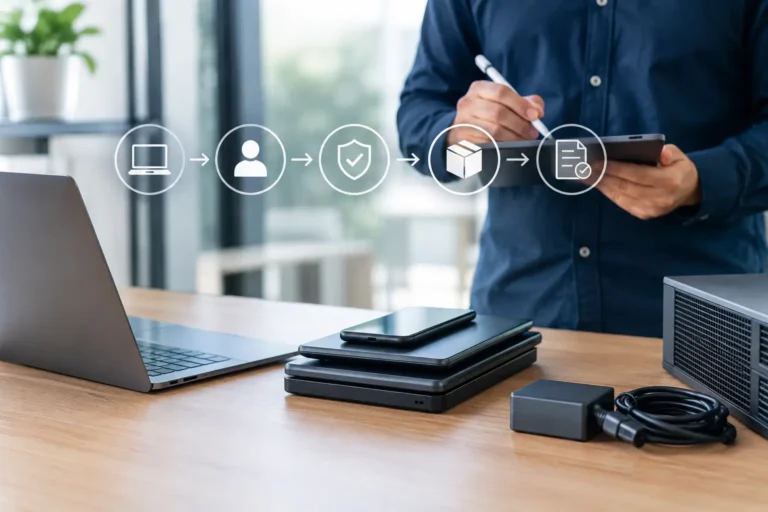
You do not need a complex process, but you do need a consistent one. The biggest failures happen in the handoffs: devices stacked in cupboards, missing chargers, “someone will reset them later”, and drives swapped between units without records.
1) Triage the device before you wipe
Identify the laptop model, the drive type (HDD or SSD), and whether it is removable. Confirm whether the device has full-disk encryption enabled and whether you can access administrative credentials.
This is where you decide what you are optimising for: speed, maximum assurance, or compliance evidence. For many organisations, the correct answer is “all three, within reason”.
2) Decide on wipe versus destroy
Not every drive should be wiped.
If the device holds highly sensitive data, is from a high-risk environment, or you cannot establish chain of custody, physical destruction may be the better choice. Wiping is a control. Destruction is a different control. The right decision depends on what was on the device and how confident you are about handling.
For most standard business laptops going to refurbishment or resale, a verified wipe is the normal route because it preserves value.
3) Use a tool that produces a record
A secure wipe without evidence is difficult to defend. Your process should produce at least: the device identifier, the drive serial number where possible, the method used, the date/time, and a pass/fail verification.
For IT teams, this is about audit and continuity. For schools and smaller organisations, it is about confidence when devices leave site. For resellers, it is about protecting your reputation.
4) Verify, then spot-check
Verification should not be a “nice to have”. The tool should confirm that the wipe ran to completion and, where applicable, validate sectors/blocks.
On top of that, build in spot checks. A simple sampling approach reduces the chance that a systematic issue goes unnoticed, such as a misconfigured boot media, a failed SSD secure erase command, or a batch of drives that report success incorrectly.
5) Rebuild for redeployment with the right baseline
A wiped laptop is not automatically ready.
If the laptop is being redeployed internally, set a standard image, patch level, driver set, and security configuration. If it is going to a new owner, install a clean OS state appropriate to the sale model and remove tenant ties (device management enrolment, firmware locks, and accounts).
Secure data wiping is part of lifecycle management, not an isolated task.
Common edge cases that catch teams out
BIOS/UEFI passwords and management locks
If a device is locked at firmware level, you may not be able to boot wipe media or run drive-level commands. The result is often a “wipe later” pile.
If you cannot reliably unlock devices, plan for alternative handling: authorised unlock process, drive removal, or destruction.
Devices that fail mid-wipe
Old batteries, thermal issues, and failing drives can break a wipe partway through. That does not mean you can write it off as “mostly done”. A partial overwrite may still leave recoverable data.
Your workflow should route failures into a clear path: reattempt with stable power, move to drive removal, or destroy.
NVMe SSDs in modern laptops
Newer laptops commonly use NVMe SSDs. Secure erase support varies and sometimes depends on firmware. This is where a standardised toolset and technician process pays off, because ad-hoc methods lead to inconsistent outcomes.
Cloud sync does not remove local risk
Teams sometimes assume that because data lives in Microsoft 365 or Google Workspace, the laptop does not hold much. In practice, sync clients cache data locally, browsers retain session artefacts, and email clients keep offline stores. A wipe is still required.
Compliance and proof in a UK context
Most organisations do not need to quote legislation in day-to-day operations, but they do need to meet the outcome: personal data should not be exposed through poor disposal.
From a practical standpoint, that means two things. First, have a documented policy that states what method you use for each drive type and risk level. Second, keep wipe records that can be tied back to an asset register or disposal batch.
If you work with schools, healthcare-adjacent services, or any environment with safeguarding concerns, this is not optional process hygiene. It is basic duty of care.
Where secure wiping fits in refurbishment and value recovery
Secure data wiping is a gate. Once you can prove a laptop is clean, you can move it into testing, repair, grading, and redeployment without carrying risk forward.
It also protects value. Devices that cannot be verified often get downgraded to parts or scrap purely because nobody can sign off the data state. A clean chain from collection to wipe to rebuild keeps more units in circulation and reduces avoidable e-waste.
If you need an end-to-end route that handles collection, wiping evidence, refurbishment, and redeployment under one coordinated process, that is the sort of lifecycle flow we build at Refurb X Connect.
What “good” looks like when you audit it
You should be able to answer these questions without searching through inboxes:
Do we know where every laptop is between last user and wipe? Can we prove which wipe method was applied to which drive? Can we show that verification passed? Do we have a defined route for failures and locked devices? Are we consistent across sites and teams?
When those answers are clean, secure data wiping stops being a stressful end-of-project scramble. It becomes a controlled step in a repeatable device lifecycle.
The useful test is simple: if you had to hand a batch report to a customer, a headteacher, or an auditor tomorrow, would it read like a process – or like a best effort?