How to Restore Gaming PCs for Reliable Play
A gaming PC that stutters, crashes or takes ten minutes to reach the desktop is not automatically finished. Knowing how to restore gaming PCs starts with separating software faults from worn hardware, then deciding which work will genuinely return value. A clean installation alone will not cure an overheating graphics card, and a new GPU will not fix a corrupted Windows profile.
For a single home machine, restoration may mean bringing an older desktop back to reliable use. For a business, school or reseller, it should be a repeatable process: identify the specification, protect data, diagnose faults, replace only what is necessary and prove performance before redeployment or resale.
Start with the right restoration goal
“Restore” can mean several things. It may mean returning the PC to a known-good Windows state, refurbishing a used system for resale, or upgrading an older machine so that it can run current games at sensible settings. The correct route depends on the hardware platform, its condition and the expected workload.
A ten-year-old PC with a low-end processor and proprietary power supply may be better suited to light computing than modern gaming. By contrast, a well-specified desktop with a capable processor, standard components and a tired SSD can often be restored economically. Do not judge the machine by its case or RGB lighting. Check the processor generation, motherboard compatibility, graphics card, memory capacity, storage health, power supply rating and cooling arrangement.
Before opening the case, record the serial number, specification and visible condition. Photograph cable routing and any unusual connectors. This is particularly useful when handling batches of devices, where configuration differences can otherwise create delays and incorrect parts orders.
Protect data before making changes
A gaming PC can hold more than game installs. Personal documents, browser passwords, game saves, screenshots and account credentials may all be present. If the device is being transferred to a new user, secure data erasure is not optional.
Where the original owner needs their files, take a verified backup before resetting Windows or replacing the drive. Cloud-synchronised game saves should still be checked locally, especially for older titles and modded installations. If the machine is being resold, redeployed or received through an IT asset disposition process, erase storage using an appropriate verified method and retain the relevant erasure record.
Do not rely on simply deleting files or formatting a drive. Data can remain recoverable. Storage media that cannot be reliably wiped, or that has failed, should be handled through a controlled disposal route rather than passed on with unknown data exposure.
Diagnose the PC before buying parts
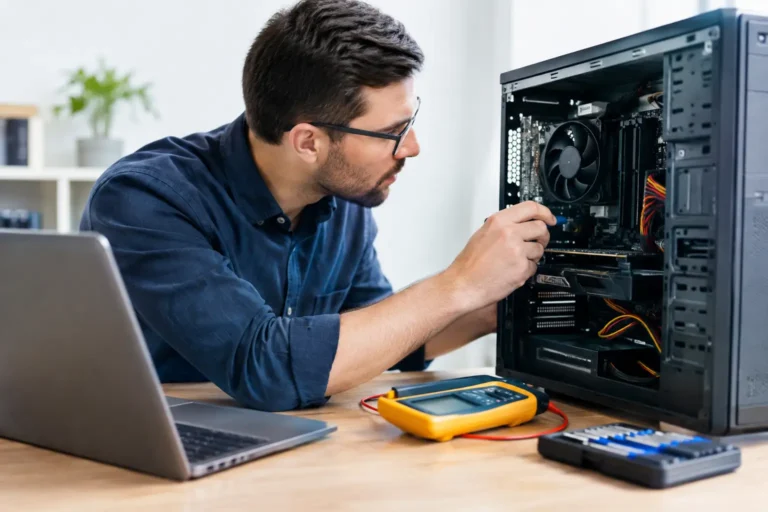
The fastest way to waste money is to treat every symptom as a reason to upgrade. Start with a controlled assessment. Does the machine power on consistently? Does it reach BIOS? Does Windows load? Are there display artefacts, unexpected shutdowns or fan noise? Establishing the failure point narrows the work quickly.
Check heat, dust and physical condition
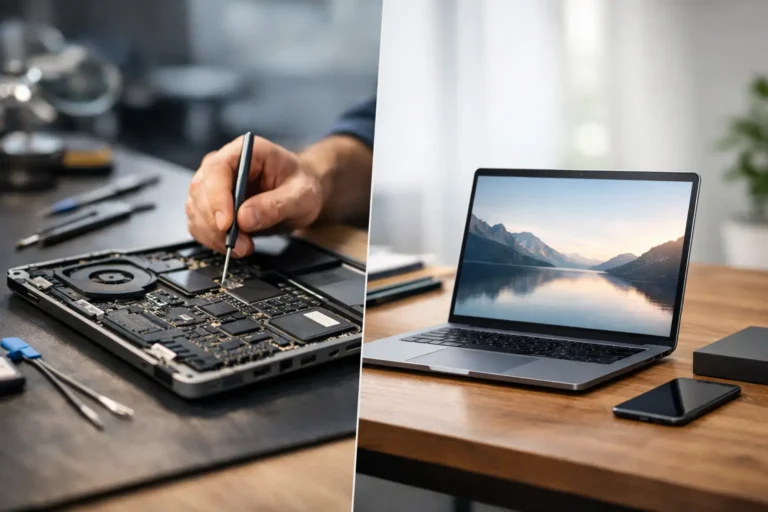
Open the case with the system disconnected from mains power. Look for heavy dust accumulation in heatsinks, blocked fan intakes, loose connectors, swollen capacitors, damaged ports and signs of liquid exposure. Dust alone does not always cause failure, but restricted airflow can push a processor or graphics card into thermal throttling. The result feels like poor performance even where the specification is still adequate.
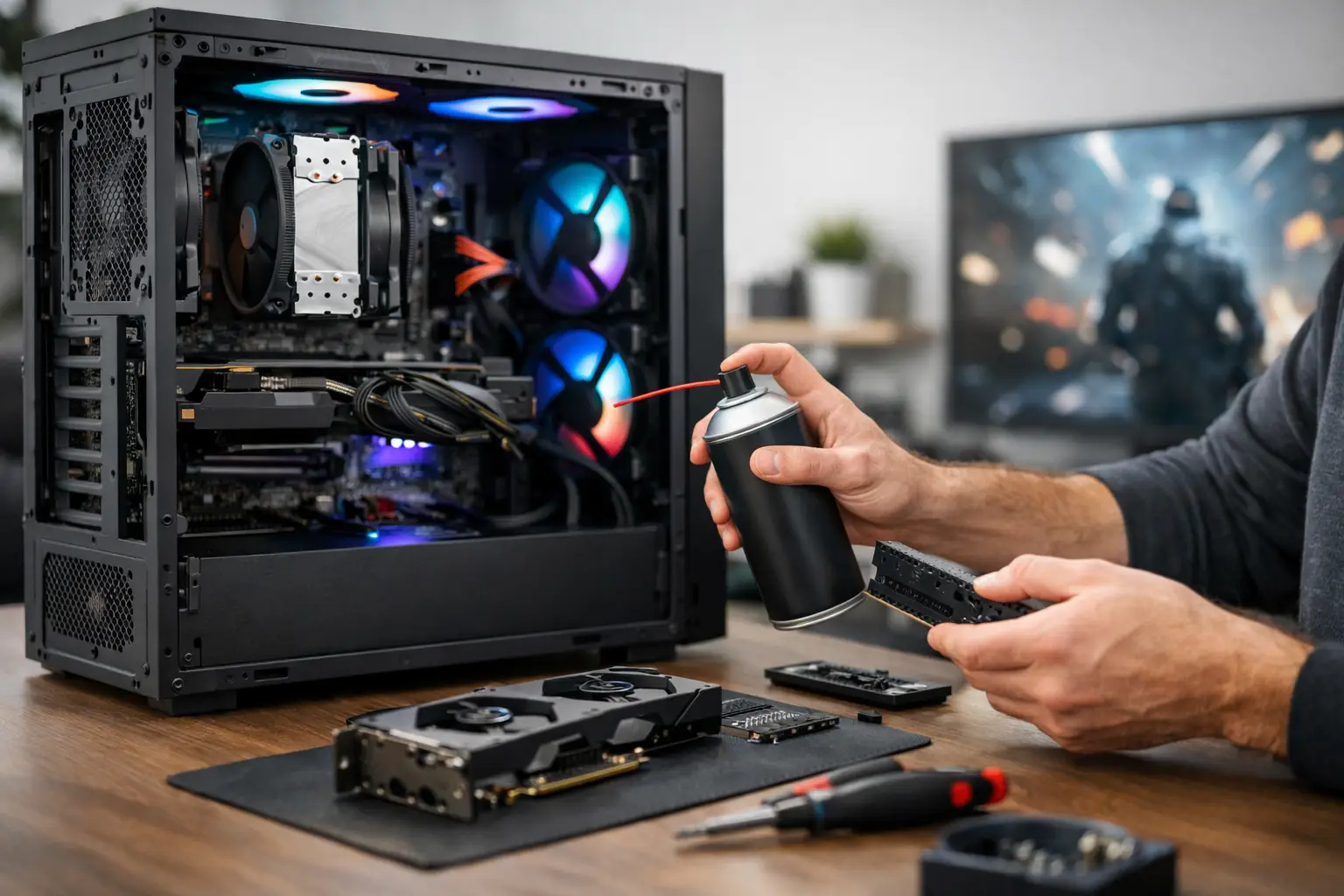
Clean using appropriate non-conductive tools and controlled air pressure. Hold fan blades in place during cleaning so they do not spin excessively. Check that fans turn freely and that CPU coolers are firmly mounted. Old thermal paste can contribute to higher temperatures, although it should be replaced only after confirming that the cooler and fan are otherwise functional.
Test the core components
Memory faults commonly appear as random crashes, failed boots or application errors. Test RAM modules individually where practical and use a memory diagnostic tool to identify unstable modules. Check that matching modules are installed in the recommended slots, as incorrect placement can reduce performance or prevent dual-channel operation.
Storage deserves equal attention. A mechanical hard drive may still work but can make a PC feel unusably slow, while a failing SSD can cause freezes, boot errors and corrupted files. Review drive health data, test read and write behaviour, and replace suspect drives before investing time in software repair.
Graphics faults need careful interpretation. Screen artefacts, driver crashes and black screens may come from the GPU, but they can also result from a weak power supply, poor cable connection, faulty monitor cable or damaged display port. Test with a known-good cable and display first. If possible, test the graphics card in another compatible system or use an alternative GPU in the PC.
The power supply is often overlooked because it has no visible performance specification. Yet unstable voltage delivery can produce shutdowns under load, failed starts and intermittent GPU problems. A quality, correctly rated unit is worth more than a cosmetic upgrade. Avoid fitting an unknown second-hand power supply into a system intended for regular gaming.
Restore Windows only after the hardware is stable
Once basic hardware checks are complete, decide whether Windows can be repaired or should be reinstalled. If the PC has accumulated failed drivers, unwanted utilities, malware risks or persistent account problems, a clean installation is usually the more dependable route.
Install the correct edition of Windows, apply current updates and load drivers from the relevant hardware manufacturer. Start with chipset, network and graphics drivers. Avoid third-party driver update tools, which can introduce unsuitable versions and make fault tracing harder. Confirm Windows activation through a legitimate licence path rather than relying on unverified activation methods.
A clean installation should not be loaded immediately with launchers, overlays and tuning software. First confirm stable idle behaviour, restart performance, sleep and wake operation, network connectivity and display output. Then install essential software in stages. If a fault returns after a particular utility or game installation, you have a clearer cause to investigate.
For older gaming systems that cannot meet supported Windows requirements, assess the intended use honestly. An unsupported operating system may be unsuitable for a device handling sensitive accounts, online payments or business data. In some cases, the responsible decision is to repurpose the machine for offline legacy gaming or retire it from connected use.
Upgrade where it changes the experience
The best upgrades are usually not the most expensive. Moving from a hard drive to a quality SSD transforms boot times, game loading and general responsiveness. Increasing memory from 8GB to 16GB can reduce stutter in modern games and improve multitasking. These are practical changes when the motherboard and processor remain serviceable.
A graphics card upgrade can extend the useful life of a gaming PC, but compatibility matters. Check physical clearance, PCIe compatibility, required power connectors, power supply capacity and expected processor bottlenecks. Pairing a high-end GPU with an old entry-level CPU may increase frame rates in some titles while leaving others limited by processor performance.
Processor upgrades are less straightforward. They may require a BIOS update, compatible motherboard socket and improved cooling. On older platforms, a newer used system with a more balanced specification can be better value than chasing scarce compatible processors.
Set the target clearly: 1080p esports gaming, older AAA titles, casual use or current demanding releases. A restored PC should be judged against the needs of its next user, not against the latest flagship hardware.
Test under real load, not just at the desktop
A PC that boots is not necessarily ready for gaming. Run a sustained graphics and processor workload while monitoring temperatures, clock behaviour and stability. Listen for fan bearing noise and watch for sudden shutdowns, freezes, artefacts or driver resets. Test front-panel USB ports, audio, Wi-Fi or Ethernet, and each display output that will be advertised or used.
Use more than one type of test. A synthetic benchmark can reveal thermal or power instability, while a real game can expose storage stutter, controller issues and inconsistent frame pacing. Leave enough time for the system to heat up fully. Problems that appear after twenty minutes are easy to miss during a brief power-on check.
For professionally refurbished stock, document the final specification, storage capacity, memory configuration, operating system, cosmetic grade and test outcome. Transparency matters. A buyer should know whether a gaming PC is suited to modern play, entry-level titles or general desktop use with a dedicated GPU.
When restoration is not the sensible option
Not every machine should be repaired. Severe corrosion, repeated motherboard faults, unsupported proprietary parts or a combination of weak CPU, inadequate power supply and failing GPU can make restoration uneconomic. The aim is not to keep every device alive at any cost. It is to extend useful life where the result is safe, stable and proportionate.
Working systems that are no longer viable for gaming may still have a second life as office desktops, education devices, media PCs or donor units. Components such as memory, storage, cases and graphics cards may be recoverable after testing. This keeps usable hardware in circulation and reduces avoidable e-waste.
A restored gaming PC earns its place when the work is measurable: stable temperatures, healthy storage, clean software, tested ports and performance that matches the stated specification. Treat each machine as a lifecycle decision, and the right next step becomes much easier to see.