
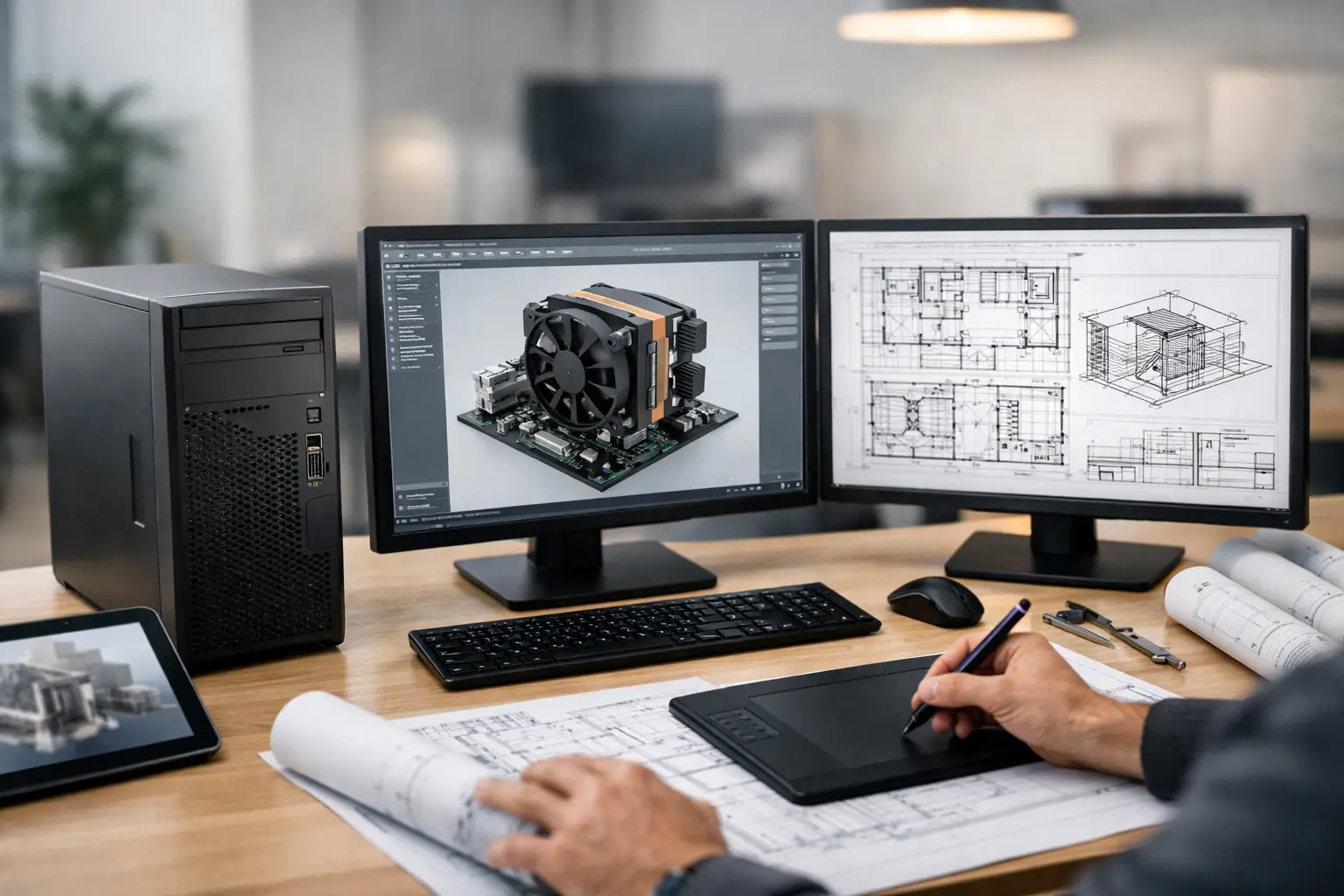
Choosing a Refurbished Workstation for CAD
A refurbished workstation for CAD can reduce acquisition costs substantially without forcing designers onto consumer-grade hardware. The value is not simply in buying an older, more powerful machine. It comes from selecting an enterprise platform with the right balance of processor performance, professional graphics, memory, storage and support for the CAD applications your team actually uses.
For a single designer, a school IT suite or a wider engineering team, that distinction matters. A high-specification workstation can still be the wrong purchase if its graphics card is poorly suited to the software version, its storage is worn, or it cannot run a supported operating system. Procurement should start with the workload, then work backwards to the device specification.
Start with the CAD workload, not the model name
CAD covers very different demands. A technician working mainly in 2D drawings has a different requirement from a designer handling large assemblies, simulation, visualisation or rendering. Treating every CAD user as if they need the same machine leads either to overspend or avoidable slowdowns.
For 2D drafting and light 3D work, a recent business-class desktop with a capable processor, 16GB of RAM, SSD storage and an entry-level professional GPU may be sufficient. The priority is responsive day-to-day use, quick file access and stable display output.
Complex 3D modelling changes the calculation. Large assemblies place pressure on both the CPU and available memory. Viewport performance depends heavily on the graphics card, while rendering may benefit from more CPU cores, GPU acceleration or both, depending on the application and render engine. A workstation should be specified around the most demanding regular task, rather than an occasional edge case.
Ask users what happens when their current device slows down. Does it occur when opening drawings, rotating a model, exporting files, running analysis or rendering? Those answers are more useful than a generic request for a “fast PC”.
What a refurbished workstation for CAD needs
A workstation-grade platform from Dell Precision, Lenovo ThinkStation or HP Z is usually a sensible starting point. These systems were designed for sustained professional use, practical servicing and multiple display or storage configurations. Their internal layout and power delivery also tend to accommodate professional graphics cards more reliably than compact consumer desktops.
Processor: speed first, cores where they count
Many CAD applications still rely significantly on single-thread performance during modelling operations. A newer processor with strong clock speed can therefore feel faster than an older high-core-count Xeon in everyday use. This is one of the most common traps in the refurbished market: an imposing specification can hide an architecture that is several generations behind.
More cores remain useful for rendering, simulation, batch exports and parallel workloads. The right choice depends on the software and the user’s role. For mixed CAD use, prioritise a reasonably recent processor with good single-core performance, then add cores where the workflow demonstrably benefits.
Graphics: check the exact GPU and driver path
Professional GPUs such as NVIDIA RTX, Quadro, T-series or RTX A-series cards, and AMD Radeon Pro cards, are often preferable for CAD because they are designed around professional application compatibility and stable drivers. That does not mean every professional card is automatically suitable. Generation, memory capacity and driver support are decisive.
A low-end older card may provide professional branding but struggle with complex viewports or high-resolution monitors. Conversely, some mid-range cards provide excellent performance for mainstream CAD without the cost of a top-tier GPU. Check the CAD software vendor’s current hardware guidance and match it to the exact card, operating system and driver version being deployed.
For organisations standardising a fleet, consistency is valuable. Similar GPU configurations simplify driver management, support documentation and user experience across the team.
Memory: leave headroom
16GB of RAM is workable for basic drafting, but it is increasingly a minimum rather than a comfortable target. For most professional 3D CAD users, 32GB is a more practical baseline. Teams working with large models, multiple applications, rendering or simulation may need 64GB or more.
Memory upgrades are often one of the strongest reasons to choose a refurbished tower workstation. Enterprise systems commonly have accessible DIMM slots and higher maximum capacities. Confirm the memory type, number of free slots and supported configuration before purchase. Adding mismatched modules later can compromise stability or prevent the system running at its intended speed.
Storage: SSD health matters as much as capacity
A CAD workstation should use an SSD for Windows, applications and active project files. NVMe storage is preferable where the platform supports it, particularly for large file operations, but a quality SATA SSD remains a meaningful improvement over a mechanical hard drive.
Refurbishment should include storage diagnostics and clear handling of used drives. For managed deployments, secure data erasure is not an optional extra. It is part of the chain of custody that protects both the previous owner and the incoming organisation. Where practical, fitting a new SSD also provides a known starting point for health, capacity and operating system deployment.
Do not overlook Windows compatibility
A well-priced workstation can become false economy if it cannot run a supported Windows release in your environment. Before standardising on a device, verify processor compatibility, TPM capability, firmware settings and the availability of drivers for the intended version of Windows.
This is particularly relevant with older Xeon systems. They can offer plenty of memory, expansion and raw multicore capacity, yet fall outside preferred support parameters for a modern Windows estate. An organisation can still have a valid specialist use for such hardware, but it should be a deliberate exception, not an accidental consequence of buying on headline specification alone.
The same applies to CAD application versions. Confirm licensing requirements, operating system support and whether a specific feature relies on a current graphics driver. A workstation is a platform, not an isolated purchase.
Refurbishment quality is part of the specification
The condition of the hardware behind the specification sheet determines whether a refurbished device is dependable in service. Professional refurbishment should go beyond a cosmetic clean and a fresh Windows installation.
The process should include hardware diagnostics, memory testing, storage checks, port tests, thermal assessment, component replacement where required and quality assurance before dispatch. On mobile workstations, battery health deserves separate attention. On desktop systems, the condition of cooling components, power supply behaviour and graphics output are equally relevant.
Grading should also be transparent. Cosmetic marks may be acceptable in an office, classroom or back-office role, provided they are accurately described and do not affect function. For client-facing use, organisations may prefer a higher cosmetic grade. Separating functional condition from appearance makes procurement decisions clearer.
Warranty support matters because CAD users are often central to a workflow. A device failure can delay design work, interrupt deadlines and create pressure on internal IT teams. The useful question is not only how long the warranty lasts, but what support process sits behind it, what components are covered and how replacement or repair is handled.
Consider the whole desk setup
A workstation is only one part of the CAD environment. Monitor choice affects accuracy and comfort, particularly where users spend long periods reviewing detailed drawings. Dual displays can improve productivity, while a larger high-resolution panel can make dense interfaces easier to manage. Ensure the selected GPU has the required outputs and can drive the chosen display resolution at a stable refresh rate.
Input devices, docking requirements, local storage policy and backup arrangements also deserve attention. For office-based CAD teams, a tower workstation may offer the best upgrade path and value. For users moving between sites or working remotely, a refurbished mobile workstation may be the better fit, provided its thermals, battery condition and graphics capability have been assessed properly.
A practical procurement approach
Start with a small number of user profiles rather than one specification for everyone. For example, create a drafting profile, a general 3D design profile and a high-demand rendering or simulation profile. This keeps purchasing controlled while giving each group hardware that matches its output.
Request the exact processor, GPU, RAM capacity, storage configuration, operating system and cosmetic grade for each device. Avoid listings that describe a workstation family without confirming its installed components. Model names alone are not enough, because the same chassis can be supplied with very different internal configurations.
For larger orders, test a sample device against representative files before committing. Open a typical assembly, rotate it, edit it, export it and run any routine render or analysis task. This is a quick way to expose a mismatch between theoretical specification and real user experience.
Refurb X Connect can support this approach by aligning professionally refurbished enterprise hardware with defined user profiles, from individual systems to coordinated device refreshes. The aim is a predictable fleet, not a collection of one-off machines.
The best CAD workstation is rarely the newest or the most expensive option on the page. It is the one that runs your current workload reliably, has a clear support path and leaves enough headroom for the work arriving next quarter.