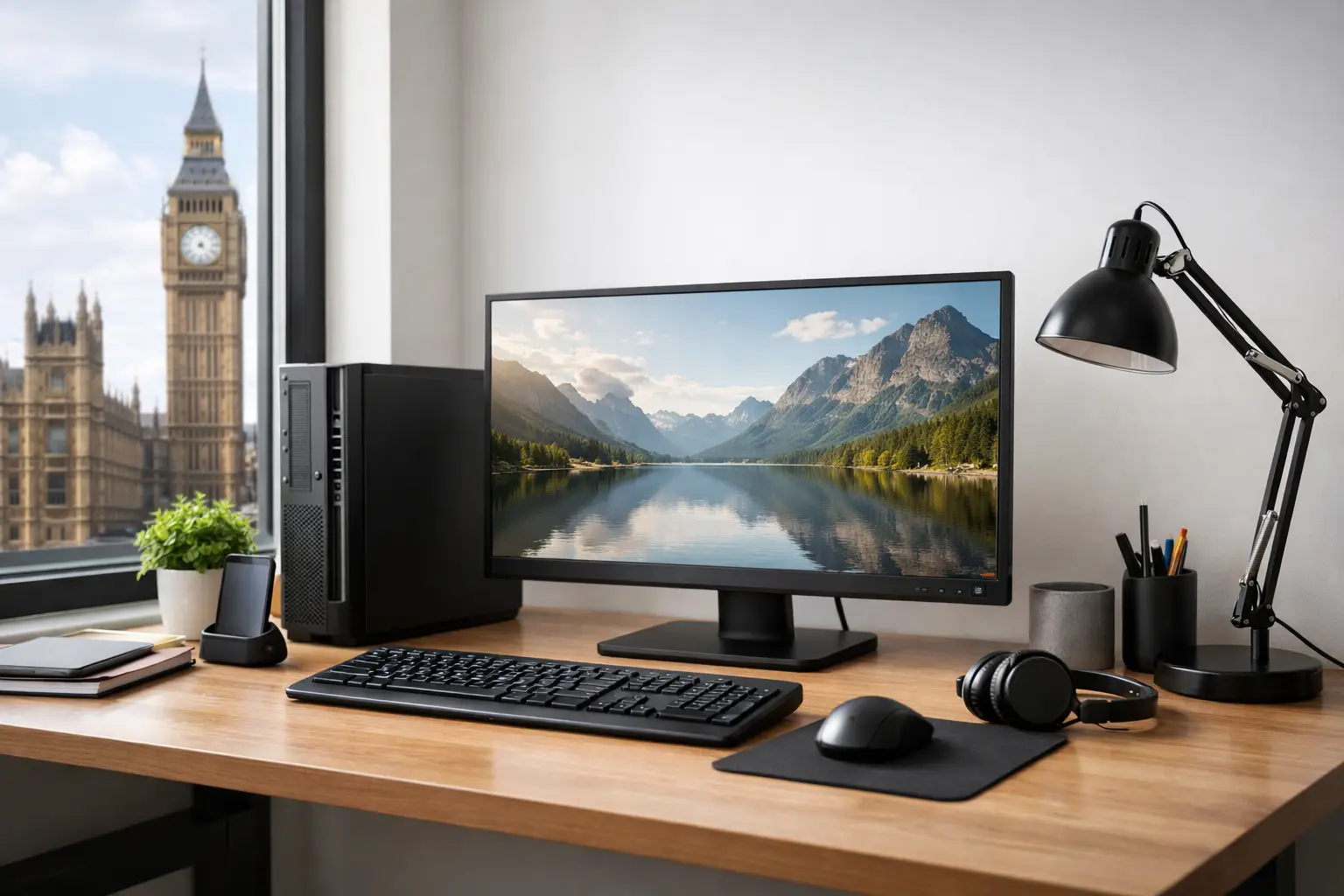
Best Refurbished Desktop Setups for UK Work
A £250 desktop that starts quickly, runs Microsoft 365 without hesitation and supports two proper monitors will often deliver more value than a new, low-spec machine. The best refurbished desktop setups are not defined by the newest processor generation. They are defined by fit: the right performance, display space, connectivity and support for the work being done.
For UK organisations, that distinction matters. Desktop estates are usually bought in volume, deployed for years and expected to remain predictable. A well-selected refurbished system can reduce capital spend, extend the life of enterprise hardware and keep capable devices in productive use rather than entering the e-waste stream.
Start with the workload, not the desktop
A desktop setup is an endpoint, not just a tower. Before comparing Dell OptiPlex, HP EliteDesk or Lenovo ThinkCentre models, establish what each user needs to do during a normal day.
Administrative teams, customer service staff and remote workers generally need reliable browser performance, Microsoft Teams, office applications and support for two displays. In this case, a compact business desktop with an Intel Core i5 processor, 8GB or 16GB of RAM and an SSD is normally the sensible baseline.
Finance, operations and users working across large spreadsheets, browser tabs and line-of-business applications benefit from 16GB of RAM as a minimum. The processor matters, but memory pressure is often what turns an otherwise capable machine into a frustrating one. A solid-state drive also changes the day-to-day experience far more than a marginal jump in processor speed.
Creative work, CAD, local data processing and specialist software need closer assessment. A standard small-form-factor desktop may be unsuitable if the application requires a dedicated graphics card, more internal expansion or sustained high performance. Refurbished workstation-class systems can be excellent value, but only where the software licence, graphics requirements and power draw have been checked first.
Best refurbished desktop setups by use case
The compact office setup
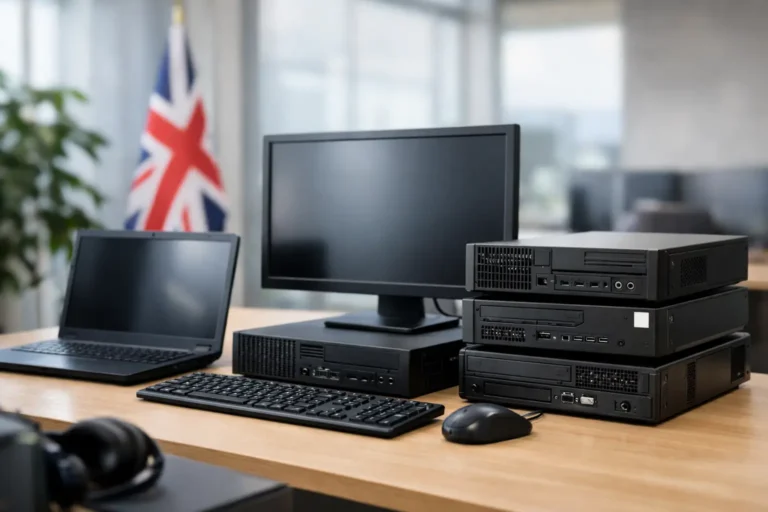
For reception areas, administration teams and home workers, a mini or micro desktop paired with one or two 23- to 24-inch monitors is a practical choice. Dell OptiPlex Micro, Lenovo ThinkCentre Tiny and HP EliteDesk Mini systems are common enterprise platforms with a small footprint and low energy use.
Look for an eighth-generation Intel Core i5 or later where Windows 11 compatibility is required, 8GB RAM at the minimum and a 256GB SSD. Add 16GB RAM for heavier browser use or Teams calls running alongside office applications. Check the available video outputs carefully. Some compact models need an adapter, docking accessory or specific configuration to drive two displays at the required resolution.
This setup suits fixed desks with limited space. Its trade-off is expansion. Internal upgrades are more limited than on a larger unit, and dedicated graphics are rarely realistic.
The standard dual-monitor business setup
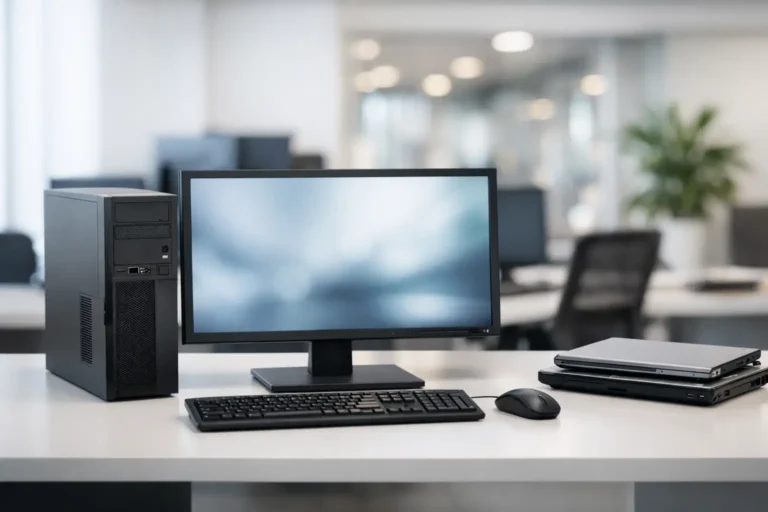
A small-form-factor desktop with two 24-inch IPS monitors is the default configuration for many office roles. It gives users enough screen space for email, documents, customer systems and spreadsheets without making the desk feel crowded.
A refurbished Core i5 business desktop, 16GB RAM and a 512GB SSD is a durable specification for this role. Use DisplayPort where possible, particularly if standardising across a fleet. It is common on enterprise desktops and supports modern monitor resolutions without relying on older VGA connections or inconsistent adapters.
This is often the strongest balance of cost, maintainability and performance. Larger small-form-factor units can accept additional storage, more memory and selected low-profile graphics cards, which gives IT teams room to respond if requirements change.
The power-user setup
For analysts, developers, design staff and users handling demanding applications, choose a tower or workstation chassis rather than forcing a compact desktop beyond its intended role. Prioritise 16GB to 32GB RAM, a larger NVMe SSD and a processor generation that meets the application vendor’s requirements.
A dedicated graphics card should be specified by workload, not assumed. Some users need it for professional visual applications or multiple high-resolution displays; many do not. A graphics card adds cost, heat, energy consumption and another component to validate during refurbishment.
For these setups, matching the monitor to the work is equally important. A 27-inch QHD display can improve working space for data and design tasks, but it requires suitable graphics output and may not be necessary for every user. Standardising on 24-inch Full HD displays may be more efficient for a mixed office estate.
The shared education or public-access setup
Shared environments need consistency more than maximum specification. A small-form-factor desktop with a wired keyboard and mouse, a 22- or 24-inch monitor, 8GB RAM and an SSD is usually enough for web-based learning platforms, Microsoft 365 and managed browser use.
The key decisions are operational. Devices should be configured with standard user accounts, current Windows updates, appropriate endpoint protection and clear asset records. Where local storage is unnecessary, smaller SSD capacities can reduce cost. Where users need to save media or project work locally, specify more storage from the outset.
Chromebooks may also suit browser-led learning environments, but a refurbished Windows desktop remains the better fit when existing applications, peripheral compatibility or local management tools depend on Windows.
The specification details that affect everyday use
Processor labels alone do not tell the full story. A refurbished Intel Core i5 from a suitable generation with an SSD and sufficient RAM can outperform a newer but entry-level machine fitted with a mechanical hard drive. Assess the complete configuration.
For most office deployments, 8GB RAM is workable, while 16GB gives more headroom for browser-heavy work and longer service life. Storage should normally be SSD-based. A 256GB SSD suits many standard users, whereas 512GB gives more tolerance for local files, cached data and application growth.
Ports deserve the same attention as internal components. Confirm how many USB ports are available, whether front ports are needed, and whether the system supports DisplayPort, HDMI or USB-C for the chosen monitors. If legacy peripherals remain in use, check for the relevant connections before ordering. Standardising adapters can create unnecessary support work.
Do not overlook the monitor. A capable desktop paired with a poor, mismatched or heavily worn display is not a good setup. IPS panels generally offer better viewing angles and more consistent image quality for office use. Check for screen marks, brightness consistency, stand adjustment and the correct cables for the desktop configuration.
What professional refurbishment should cover
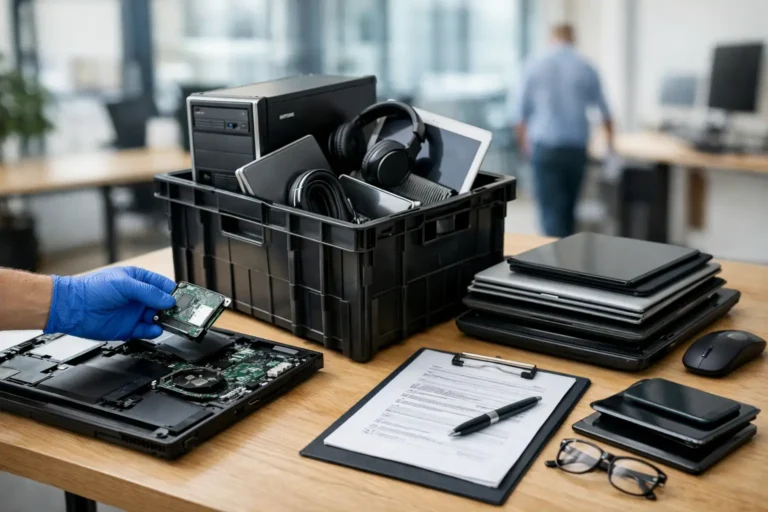
Refurbished does not mean simply cleaned and switched on. Enterprise hardware should be processed through a repeatable inspection and testing workflow. That includes secure data erasure, diagnostics, component checks, storage health verification, operating system installation, port testing and cosmetic grading.
For organisations, data handling is particularly significant. Devices coming out of an IT refresh may contain employee data, customer information, cached credentials or licensed software. Secure erasure and traceable IT asset disposition processes protect the outgoing estate before equipment is redeployed or resold.
The incoming devices also need a clear condition standard. Cosmetic grading should be separate from functional quality. Minor case marks may be acceptable in a cost-led rollout, but dead pixels, unstable storage, damaged ports or unreliable power supplies are not cosmetic issues. Warranty terms, battery condition for any accompanying peripherals and the availability of replacement parts should be understood before purchase.
Refurb X Connect approaches this as a device lifecycle process: hardware assessment, controlled refurbishment, configuration and accountable resale. That is more useful to a business than treating each desktop as a one-off purchase.
Standardise the setup before rollout
The most effective desktop estate is usually the least varied. Select one or two approved desktop configurations, one monitor size for each user group and a consistent set of keyboards, mice and cables. This simplifies imaging, support, spares holding and future redeployment.
It also improves purchasing decisions. Once a baseline is agreed, compare suppliers on tested specification, grading, warranty, data security and fulfilment reliability rather than headline price alone. A cheaper device that arrives with inconsistent memory, storage or display connections can cost more in deployment time.
Keep an asset record for each unit, including serial number, configuration, assigned user, operating system version and warranty details. When the time comes to refresh the estate, those records make it easier to identify devices suitable for redeployment, upgrade, resale or secure disposal.
When a refurbished desktop is not the right answer
A desktop is not automatically the best choice for every role. Hybrid staff who regularly work from different locations may be better served by a refurbished business laptop and a fixed monitor setup at their main desk. Roles that rely on travel, site visits or frequent meeting-room use need portability first.
Equally, avoid buying an older desktop simply because the initial price is low. If it cannot run the required operating system, lacks the right display outputs or has no realistic upgrade path, it may create a short-term saving and a near-term replacement problem.
Choose the setup around the work, validate the full configuration and keep the standard repeatable. That approach makes refurbished desktop procurement easier to manage and gives each device a longer, more useful working life.