Old computer disposal in the UK: do it properly
A cupboard full of retired laptops is not “tidying for later”. It is untracked data risk, wasted residual value, and – if it ends up in the wrong bin – a compliance problem. In the UK, disposing of old computers is less about finding somewhere that will take them and more about doing it in the right order: data first, then route, then evidence.
This guide is built for UK households, schools and businesses managing device refreshes. It stays practical, because disposal decisions get messy when you mix personal data, corporate assets and deadline pressure.
How to dispose of old computers UK: what the law expects
Computers and laptops fall under the UK’s WEEE regulations (Waste Electrical and Electronic Equipment). In plain terms: you should not put them in general waste, and they should move through a collection and treatment route designed for electrical items.
For individuals, this usually means using a retailer take-back scheme, a local authority household waste recycling centre (HWRC), or a specialist collection service. For organisations, it usually means using a contracted provider that can collect, process, and give you the paperwork your auditors will ask for.
WEEE compliance is not the only consideration. The moment you dispose of a device that has stored personal or sensitive information, you also have a data protection obligation. For a business, that sits under UK GDPR and the Data Protection Act. For a school or charity, it is the same problem with different stakeholders: pupil records, safeguarding notes, donor information, staff data.
The practical takeaway is simple: the “disposal route” is not your first decision. Your first decision is what standard of data handling you need.
Step one: decide what “secure” means for your data
Not every device needs the same treatment. A home PC that only ever held streaming logins is different from a finance team laptop with cached spreadsheets and saved credentials. What matters is what is on the drive, and whether the device is still functional.
If the device is working and you want it reused, you can wipe it to a recognised standard and then refurbish, sell, donate, or trade it in. If the device is dead, very old, or has a drive you cannot reliably access, physical destruction of the storage media is often the cleaner option.
Be clear on one nuance: “factory reset” is not the same as “data erasure”. A reset can leave recoverable data behind. For business fleets, relying on resets is an unnecessary risk.
What to do before any wipe
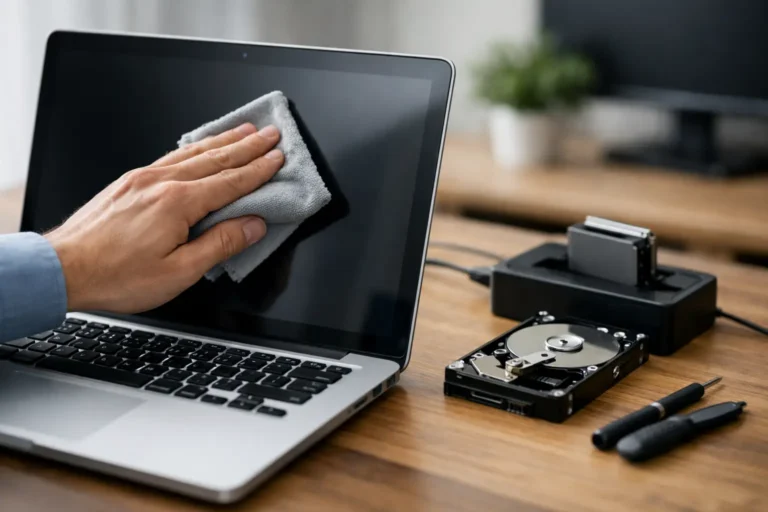
First, identify what storage is inside. Many laptops now use NVMe or SSDs soldered to the board. Older machines may have removable SATA drives. Some devices have more than one storage module.
Then handle the basics: sign out of accounts, remove the device from any management tools, and collect licences and recovery keys. If you use Microsoft 365, Apple ID, Google Workspace, or device management such as Intune, Jamf, or ChromeOS management, make sure the device is released properly. Otherwise, the next owner may be locked out, and you will have an asset you cannot redeploy.
If encryption is enabled (BitLocker or FileVault), keep the recovery keys until the device is processed and verified.
Erase, then verify
A proper wipe is a process, not a button. You want an erasure method appropriate to the drive type and a verification step that confirms it completed.
For HDDs, overwriting can be effective. For SSDs, secure erase methods designed for flash storage are more appropriate, because wear levelling can make traditional overwriting unreliable. If you are dealing with sensitive datasets or regulated environments, consider drive destruction rather than software erasure.
Verification matters. It is the difference between “we think it’s wiped” and “we can demonstrate it was wiped”. For organisations, that usually means an erasure report or certificate tied to a serial number or asset tag.
Step two: choose the right disposal route
Once data handling is defined, you can decide where the device should go. In practice you are balancing three outcomes: maximum reuse, controlled recycling, and minimum operational effort.
Route A: refurbish and redeploy (best for value and carbon)
If the device powers on, charges, and is not too old to be supported, refurbishment is usually the best first option. It keeps the asset in service, reduces procurement pressure, and avoids the hidden cost of “premature recycling”.
For businesses and schools, redeployment works when you have a clear target use case: staff loan pool, exam laptops, training rooms, or thin-client style roles where performance requirements are lower.
Trade-off: refurbishment requires some coordination. You need triage, parts, quality control, and a defined standard so you are not just moving problems around your estate.
Route B: trade-in or buyback (best when time is tight)
When you are mid-refresh cycle, speed and predictability often matter more than squeezing every pound out of residual value. A trade-in route can work well if it includes collection, grading, and secure data handling.
Trade-off: trade-in values vary widely based on condition, specs, and market timing. The “easy” route can be expensive if the grading criteria are unclear or if you are charged for rejected units.
Route C: donate (best when governance is strong)
Donation can be a good option when devices are refurbishable and you can guarantee they are properly wiped and fit for use. For organisations, donation should still look like an asset disposal process, not a goodwill gesture.
Trade-off: donation without professional preparation creates risk. If you cannot evidence data handling, it is not worth it.
Route D: WEEE recycling (best for end-of-life devices)
If a computer is obsolete, damaged, or uneconomical to repair, recycling is the correct outcome. WEEE recycling routes should ensure devices are treated properly and materials are recovered where possible.
For households, your local HWRC will typically accept computers. Retailers selling new electronics often offer take-back options. For businesses, a managed collection with documentation is usually the operationally sensible route.
Trade-off: recycling is not automatically “secure”. Make sure your chosen route addresses data-bearing components.
Step three: separate the device into “value parts” and “risk parts”
A computer is not one thing. Treat it like a set of components with different handling rules.
The drive is the risk part. It carries the data story. If you remove drives before disposal, keep chain-of-custody tight. Label them. Store them securely. Do not leave them in a box in a comms room.
Batteries, especially lithium-ion laptop batteries, need correct handling. Swollen or damaged batteries should not be shipped casually. If you are unsure, treat them as hazardous and use a provider that can manage them safely.
Monitors, cables, docks and peripherals are often where “WEEE clutter” builds. Decide whether they are to be redeployed internally or recycled, then process them deliberately rather than as an afterthought.
For organisations: treat disposal as a controlled workflow
If you manage more than a handful of devices, ad hoc disposal becomes expensive. Not because of the recycling cost, but because of the time lost and the gaps in evidence.
A controlled workflow usually includes asset inventory, serial capture, wipe or destruction method, collection notes, and final reporting. If you lease devices, confirm return conditions – some lessors require specific data handling and packaging standards.
Also be realistic about “storage”. Many organisations keep retired devices because they are waiting for a perfect plan. Meanwhile, risk accumulates. The cleaner approach is to set a monthly or quarterly collection cadence with clear acceptance criteria.
When you need an integrated route that covers device intake, diagnostics, refurbishment, data handling and redeployment, that is the type of lifecycle coordination Refurb X Connect is built to run – via a single service hub approach that reduces handoffs and ambiguity. If you want that structured flow, start at https://refurb-x.co.uk.
Common mistakes that cause problems later
The biggest failure mode is treating disposal as a facilities task. It is an IT and governance task, because the risk sits in the storage and in the audit trail.
Another common issue is mixing devices with different ownership or data profiles in the same batch – personal devices from staff, company assets, and untagged “mystery laptops”. If you cannot identify it, you cannot prove what happened to it.
Finally, avoid “it probably went to recycling” as your evidence standard. If you are a business, you need to be able to show what was collected, how data was handled, and where it went.
FAQs
Can I put an old computer in my household bin?
No. In the UK it should go through a WEEE route, such as your local HWRC or an approved take-back or collection service.
Is a factory reset enough before I sell or give away a laptop?
It depends on what was on it and how risk-tolerant you are. For low-risk personal use, a reset plus proper account sign-out may be acceptable. For anything containing sensitive or business data, use a verified wipe method or drive destruction.
What if my laptop will not turn on – how do I wipe it?
If you cannot access the drive reliably, remove the drive if possible and destroy it, or use a service that can handle destruction and provide evidence. For devices with soldered storage, you may need full unit processing with a provider capable of secure treatment.
Do I need paperwork for disposal?
Households usually do not. Organisations should assume yes. Collection records, serial lists, and wipe or destruction reports prevent avoidable issues later.
Retired computers are easy to ignore because they are silent. The better approach is to treat them like any other operational asset: decide the data standard, pick the route that fits, and keep proof – then you can clear space without creating a future incident.