
Microsoft Autopilot deployment for refurbished IT
A Microsoft Autopilot deployment can turn a refurbished laptop from securely erased stock into a managed, user-ready device without a traditional hands-on imaging process. For organisations buying, reusing or redeploying business hardware, that matters. The device can be posted directly to a remote employee, school site or branch location, then configured against the organisation’s Microsoft environment when the user signs in.
Autopilot does not remove the need for preparation. Refurbished hardware has a previous lifecycle, and its condition in Microsoft’s services is as significant as its physical condition. A laptop may be fully tested, fitted with a suitable SSD and installed with a clean copy of Windows, yet still be registered to another organisation’s tenant. That issue must be resolved before it reaches the next user.
What Microsoft Autopilot changes
Traditional deployment often relies on a standard operating system image, local technician work and a controlled network. Autopilot takes a different route. Windows connects to Microsoft during the out-of-box experience, identifies the device, and applies the organisation’s enrolment and configuration rules through Microsoft Intune and Microsoft Entra ID.
For a user, the experience is simple: connect to the internet, sign in with a work or school account, and wait while required settings, security controls and applications are applied. For IT teams, the value is consistency. A device can receive the same baseline whether it is issued from a central stock location or delivered to a home worker.
That model works particularly well for professionally refurbished laptops from Dell, HP, Lenovo and Microsoft. These systems are commonly available in quantity, have mature Windows support and can remain productive for several more years when specification, battery condition and operating system compatibility are assessed correctly.
Autopilot is not a substitute for endpoint management. It depends on decisions made in Intune, Entra ID and the wider Microsoft 365 environment. Poor application packaging, excessive mandatory software or conflicting policies will still create a slow, frustrating first sign-in. Autopilot makes the process repeatable. It does not make weak configuration disappear.
Prepare refurbished devices before enrolment
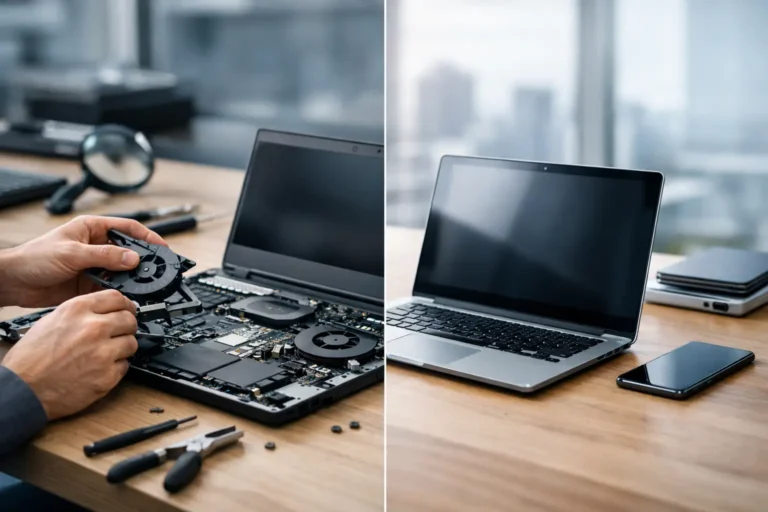
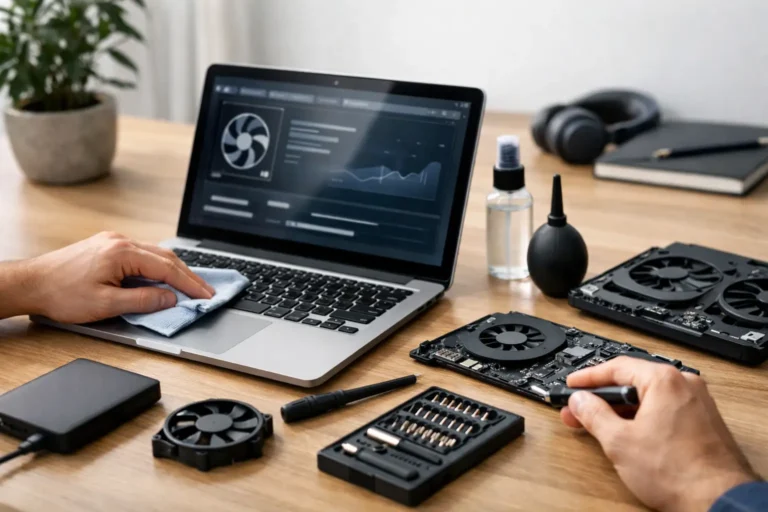
The first requirement is a clean technical starting point. Devices should be securely data-erased using an appropriate process, then inspected, tested and fitted with a supported Windows installation. Hardware diagnostics should cover storage health, memory, display function, ports, keyboard, webcam, wireless connectivity and battery performance. A device that cannot complete a stable Windows Update cycle is not ready for managed redeployment.
Windows edition also matters. Autopilot scenarios generally require an eligible edition such as Windows Pro, Enterprise or Education. Windows Home is not appropriate for normal organisational enrolment. The device must support current Windows requirements and have reliable UEFI firmware, TPM functionality and network connectivity. Older hardware may be suitable for a limited use case, but should not be forced into a modern management model it cannot support reliably.
Firmware updates should be considered before shipment, particularly where the device family has known issues with TPM, wireless adapters or power management. This is a practical trade-off. Updating every available driver and firmware component adds time, while skipping essential updates can create avoidable deployment failures. A controlled, model-specific baseline is usually more effective than treating every device as an exception.
Microsoft Autopilot deployment and tenant ownership
The most common issue with reused corporate hardware is Autopilot registration from a previous owner. Each registered device is associated with an organisation through its hardware hash. If that record remains in the former tenant, the new organisation cannot simply claim it by reinstalling Windows or uploading the same hash.
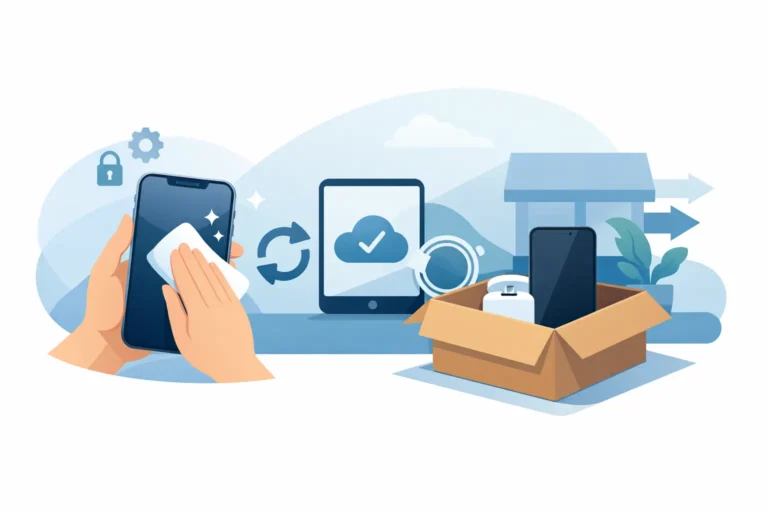
Secure erasure, Intune retirement and Autopilot deregistration are related but separate actions. Erasing a drive removes user and organisational data from the device. Removing a device from Intune ends its management record. Removing it from Windows Autopilot releases the hardware identity for future registration. All three may be required during a proper lifecycle transition.
This is why provenance matters when sourcing refurbished devices. Businesses disposing of fleets should maintain a clear handover process that includes removal from their Microsoft tenant once disposal is authorised. Buyers should ask whether devices are clear of previous Autopilot registration, rather than assuming that a fresh Windows screen confirms release.
If the previous tenant cannot or will not remove the record, the device may be unsuitable for a new Autopilot deployment. There is no reliable technical shortcut that should be used to bypass another organisation’s ownership. That is a governance issue as much as an operational one.
Register the right device identity
Autopilot needs the device hardware hash and related identifying data. This can be collected from Windows with the relevant Microsoft script or extracted during an established preparation workflow, then imported into the organisation’s Autopilot service. Device group tags can help assign a system to a suitable deployment profile, such as office staff, education users, shared devices or remote workers.
For new equipment, manufacturers and approved resellers may be able to register devices as part of supply. Refurbished devices often need more deliberate handling because their prior registration status must be checked first. The process should be documented by batch and serial number, with records showing erasure status, hardware testing, Autopilot status and final destination.
Avoid importing devices blindly. A duplicate or incorrect serial number record can slow troubleshooting, especially where several similar laptops are being prepared at once. Matching the physical asset label, BIOS serial number and imported record is a small control that prevents large-scale confusion later.
Design the user journey, not only the profile
A practical Autopilot design starts with the person receiving the device. A remote employee on home broadband needs a different experience from an IT technician preparing machines in a staging area. User-driven deployment is usually right for individually assigned laptops, while pre-provisioning can reduce the amount of work completed after the user signs in.
Pre-provisioning is useful when a device needs core applications, security tooling and configuration applied before dispatch. It reduces waiting time for the recipient, but it adds a technician step and depends on a stable network connection. It is often worthwhile for larger application sets or users who need to be productive immediately. For lighter roles, a simpler user-driven route may be more efficient.
Shared devices need careful design. A reception laptop, training-room desktop or school device pool should not inherit the same profile as a named employee machine. Sign-in behaviour, local administrator controls, app availability and reset procedures should reflect how the asset is actually used.
The enrolment status page deserves attention. Requiring too many applications before the desktop appears can make a healthy deployment look broken. Prioritise security essentials and genuinely day-one applications. Make less critical software available through the Company Portal where appropriate. This gives users a workable device sooner and reduces the impact of a single application installation failure.
Test by model and by network condition
A pilot should represent the real fleet, not just the easiest laptop on the bench. Test each major model, especially where processor generation, wireless hardware or BIOS versions differ. Run deployments over a standard office connection and a typical home connection. Confirm that the user can sign in, receive required policies, access corporate resources and restart without unexpected prompts.
Record timings as well as outcomes. If a device takes ninety minutes to reach a usable state, the process may technically succeed but still be unsuitable for a first-day employee experience. Check what is consuming time: large applications, Windows updates, endpoint security scans or conflicting policy assignments are common causes.
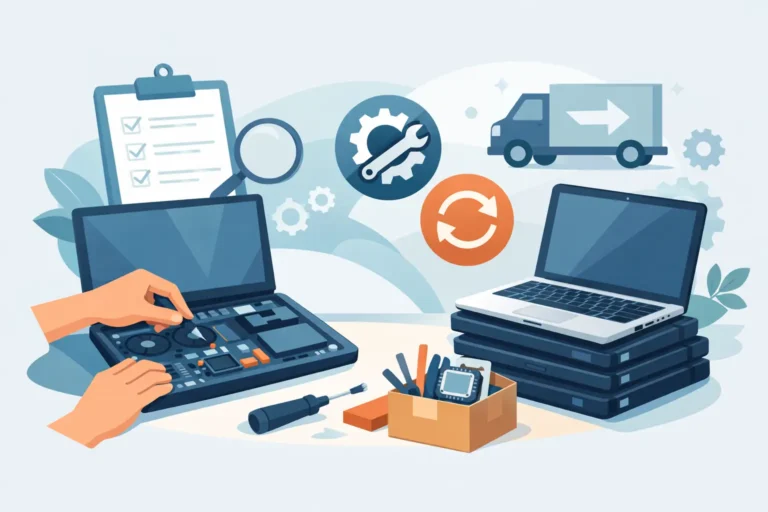
A structured refurbisher can support this process by preparing compatible devices, validating their condition and maintaining traceable records through the refurbishment workflow. Refurb X Connect can align device preparation with an organisation’s redeployment requirements, but the customer’s Microsoft tenant configuration remains central to success.
Keep the lifecycle controlled after issue
Autopilot has value beyond first deployment. When a user leaves or a device is reassigned, the organisation can reset it and return it to an enrolment-ready state. That supports a circular IT model: devices remain managed assets rather than becoming untracked surplus after one employee cycle.
The reset decision still depends on the destination. Reissue within the same organisation may only require a managed reset and fresh allocation. Transfer to another organisation requires proper tenant release. Retirement for resale requires secure erasure, condition assessment and clear removal from management platforms. Treating these as separate checkpoints protects data, supports compliance and preserves resale value.
A good Autopilot process should make refurbished technology easier to use, not harder to govern. Start with verified hardware, confirm tenant ownership before allocation, and keep the deployment profile focused on what the user needs on day one. That discipline gives each device a longer, more useful working life.