How to Upgrade School Laptops Without Waste
A slow laptop at the start of a lesson costs more than a few minutes. It interrupts teaching, delays log-ins and creates pressure for an unnecessary fleet replacement. Knowing how to upgrade school laptops starts with separating devices that are genuinely beyond economic repair from those held back by a small number of replaceable components.
For many UK schools, the most practical route is not a wholesale purchase of new devices. A structured assessment, targeted upgrades and professional refurbishment can extend the working life of business-grade laptops while keeping budgets, security and sustainability under control.
Start with a device-by-device assessment
Do not order parts based on age alone. A six-year-old enterprise laptop with an SSD, adequate memory and a sound battery may still be suitable for web-based learning, Office applications and classroom administration. A newer entry-level device with soldered memory, limited storage and poor battery health may be a weaker upgrade candidate.
Create an inventory that records make, model, serial number, processor generation, installed RAM, storage type and capacity, battery condition, operating system and physical condition. It should also identify the device’s role: pupil use, teacher use, library loan, administration, specialist software or exam provision.
This information makes decisions more consistent. It also prevents a common problem: fitting memory or storage upgrades to machines that cannot meet current operating system requirements or are already suffering from multiple hardware faults.
Check the baseline before changing hardware
Run diagnostics before opening a laptop. Test the keyboard, trackpad, webcam, speakers, ports, Wi-Fi, display, charging socket and battery. Review start-up times, available disk space and system error logs. A device that feels slow may simply have a nearly full drive, excessive start-up software or an outdated Windows installation.
Hardware condition matters as much as performance. Cracked hinges, damaged chargers and swollen batteries need resolving before a device returns to pupils. If the repair cost is disproportionate, the unit may be better retained for secure parts recovery or replaced with a professionally refurbished equivalent.
Prioritise SSD storage and memory upgrades
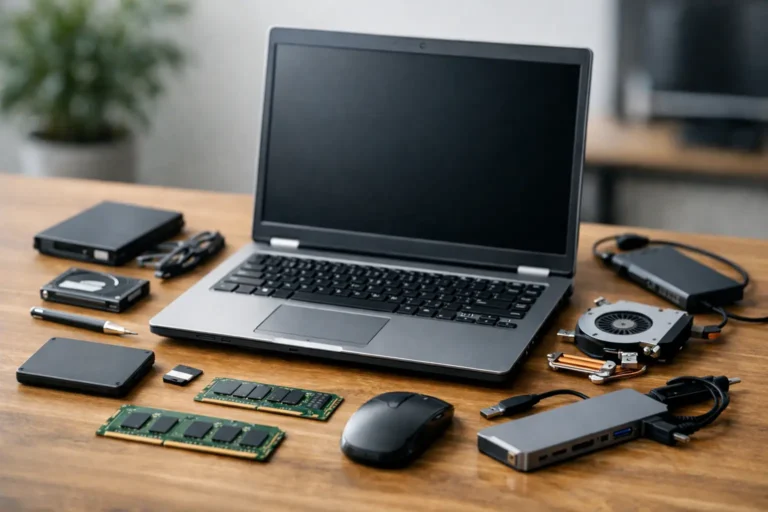
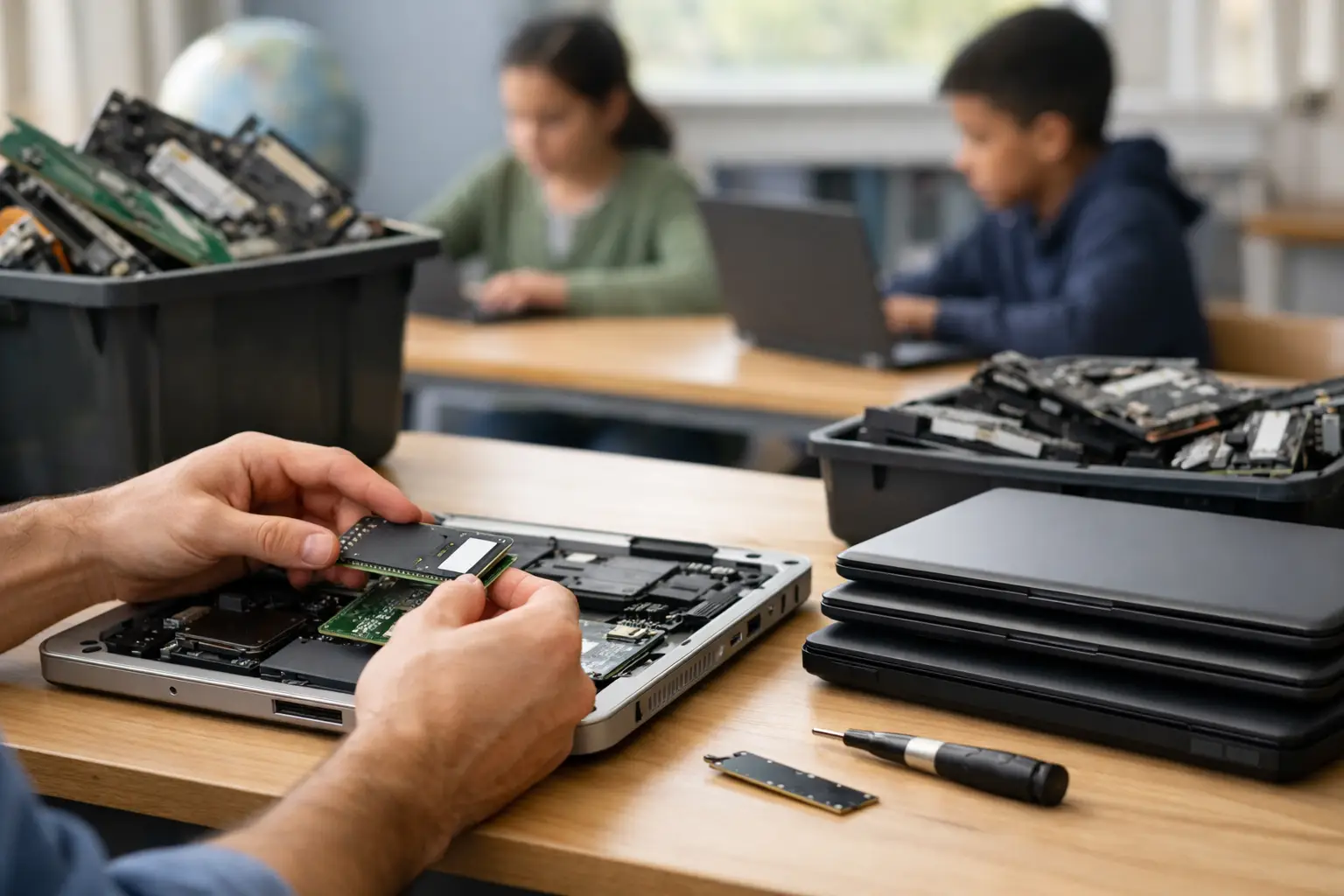
For older laptops still using mechanical hard drives, replacing the drive with a solid-state drive is usually the most noticeable improvement. SSDs reduce boot times, improve application loading and make machines feel more responsive in day-to-day classroom use. They are also less vulnerable to damage from knocks than spinning drives.
A 256GB SSD is often adequate for standard Windows devices used with cloud storage, browser-based learning platforms and Microsoft 365. Machines supporting creative applications, local media files or specialist curriculum software may need 512GB. Avoid buying more capacity than the school’s actual use requires, particularly where managed cloud storage is already in place.
RAM is the next upgrade to assess. Eight gigabytes remains a workable minimum for many Windows 11 school laptops running browser tabs, Office applications and video calls. Sixteen gigabytes is more appropriate for staff devices, heavier multitasking, media work, coding environments or demanding accessibility software.
Compatibility is not optional. Memory generation, speed, slot count and maximum supported capacity differ by model. Some modern laptops have soldered RAM and cannot be upgraded at all. Before purchasing components in volume, verify specifications against the exact manufacturer model code rather than a generic product name.
Treat batteries as a service decision
A laptop that only runs for an hour away from a mains socket restricts how it can be deployed, even if the rest of the hardware is capable. Battery health should be measured rather than guessed. Compare full-charge capacity with the original design capacity, and check for unexpected shutdowns, overheating or physical swelling.
Battery replacement is often worthwhile for a dependable business-class laptop used in classrooms, staff rooms or loan schemes. It may not be worthwhile where the device has low specification, several faults and an imminent operating system support issue. In that case, a refurbished replacement can provide a more predictable outcome and a warranty.
Use correctly specified batteries from a reliable source. Poor-quality replacements can produce inaccurate charge reporting, short lifespan and safety concerns. Battery work should also be scheduled with asset records updated, so IT teams can track which devices have received new cells and when.
Plan Windows and Chromebook lifecycles early
An upgrade is only useful while the device can run a supported operating system. Windows 11 hardware requirements have changed the calculation for many older fleets. Some machines can be upgraded through supported routes; others may be technically capable but not eligible for standard Windows 11 deployment.
Do not force an unsupported operating system onto school devices simply to delay a decision. It can complicate patching, management and support. Assess processor support, TPM availability, Secure Boot capability, driver availability and the school’s existing management tools before committing to a refresh programme.
Chromebooks require a different check: Auto Update Expiration. A Chromebook with useful hardware but limited remaining update support may be unsuitable for continued pupil deployment. Its value may lie in trade-in, parts recovery or resale through an appropriate channel, depending on condition and policy.
Apple MacBooks also need model-specific review. Storage and memory are commonly integrated, making component upgrades limited or impossible. Battery replacement, secure reconfiguration and professionally refurbished replacement units are often more practical than attempting unsupported upgrades.
Secure the data before any upgrade work
School laptops can contain pupil information, staff records, saved credentials and cached access to learning platforms. Upgrading storage is therefore an information-governance task, not only a hardware task.
Back up required data first, following the school’s retention policy. Record asset details and chain of custody for devices leaving site. If a drive is being replaced, the old drive must be securely erased using a verifiable process, or physically destroyed where policy requires it. A quick file deletion or consumer reset is not sufficient for devices containing sensitive data.
When devices are redeployed, install a clean, licensed operating system image and apply current patches. Enrol them into the school’s device management environment before issue. Standardising the image helps prevent inconsistent software, unmanaged local accounts and avoidable support requests.
Decide when refurbishment beats component upgrades
There is a point where fitting parts becomes false economy. A laptop may need an SSD, RAM, battery, keyboard and charger, yet still have a low-resolution display, weak processor or restricted Windows 11 path. The labour, parts and uncertainty can exceed the value of the finished device.
Professionally refurbished enterprise laptops can be a stronger option in these cases. Models originally built for business fleets tend to offer better repairability, more durable chassis designs and clearer component availability than low-cost consumer devices. They can be specified to a consistent standard, quality checked and supplied in quantities that support a uniform classroom experience.
Refurbished does not mean untested. A proper refurbishment process should include diagnostics, component replacement where needed, battery assessment, secure data erasure, operating system installation, cosmetic grading and final quality assurance. Schools should ask for clear specifications, warranty terms and an honest explanation of cosmetic grade.
Refurb X Connect supports this lifecycle approach by assessing used business hardware, refurbishing viable devices and helping organisations redeploy or replace equipment with a clearer audit trail.
Build a repeatable school laptop upgrade plan
The best results come from treating upgrades as a rolling lifecycle programme rather than a response to a pile of failed devices. Group laptops into practical categories: upgrade and redeploy, repair for short-term use, replace with refurbished hardware, or retire for secure data erasure and responsible resale or recycling.
Set minimum standards for each user group. For example, pupil laptops might require an SSD, 8GB RAM, supported operating system, working webcam and acceptable battery health. Staff machines may need 16GB RAM, larger storage and stronger video-call performance. This avoids spending on upgrades that do not match the device’s actual role.
Pilot the chosen configuration with a small group before changing the whole fleet. Check login speed, Wi-Fi reliability, battery runtime, printing, accessibility tools and the applications teachers actually use. A technically successful upgrade that causes problems with classroom software is not a successful deployment.
Finally, keep records of upgrades, repairs, battery replacements and disposal decisions. Good asset management improves future budgeting because it shows which models last, which faults recur and where refurbishment delivers the best return.
A school laptop fleet does not need to be new to be reliable. With accurate assessment, compatible components, secure handling and a clear replacement threshold, older business hardware can continue doing useful work for pupils and staff rather than becoming avoidable e-waste.