
7 Best Value Upgrades for Old Laptops
An old laptop usually feels slow long before it is actually finished. The gap between unusable and under-optimised is where the best value upgrades for old laptops sit. Spend in the right places and a tired machine can return to productive work for years. Spend in the wrong places and the numbers stop making sense very quickly.
That is the real decision point. Not whether a laptop can be upgraded, but whether the upgrade cost is proportionate to the hardware you already have. For home users, that means avoiding waste. For schools, businesses and managed estates, it means extending useful life without creating support problems or inconsistent performance across devices.
What makes an upgrade good value?
Good value is not the same as lowest cost. A £25 part that saves only a few seconds a day may not be worthwhile. A £60 part that transforms boot times, stability and user experience usually is.
The best upgrade candidates share three traits. They solve a clear bottleneck, they are broadly compatible with existing hardware, and they improve day-to-day use rather than benchmark scores. Storage, memory and battery health nearly always matter more than niche tweaks.
There is also a ceiling. If a laptop has a very old dual-core processor, a cracked chassis, a failing motherboard and poor battery life, upgrading one component may simply expose the next weakness. In those cases, refurbishment or replacement planning is the more efficient route.
Best value upgrades for old laptops
1. Swap a hard drive for an SSD
If a laptop still uses a mechanical hard drive, this is usually the strongest upgrade by a distance. It improves start-up time, application loading, file access and general responsiveness in ways users notice immediately. It can make a ten-year-old machine feel usable again.
For older office laptops, moving from a 500GB hard drive to a SATA SSD often gives the biggest performance gain per pound spent. Even when the processor is modest, the reduced storage delay removes much of the lag people describe as the laptop being old.
The trade-off is capacity and interface limits. Some older devices accept only 2.5-inch SATA drives, not newer NVMe formats. That is not a problem for value. A SATA SSD is still a major improvement. Capacity planning matters more. If the device stores large local files, buying the cheapest small SSD can create fresh issues within months.
2. Increase the RAM, if usage supports it
Memory upgrades are valuable when the laptop regularly runs out of RAM. Typical signs include browser tabs reloading, constant disk activity, sluggish switching between apps and poor performance in Teams, spreadsheets or light creative work.
Moving from 4GB to 8GB is often worthwhile on older Windows laptops. Moving from 8GB to 16GB can also be sensible for heavier multitasking, but only if the processor and storage are already adequate. If the machine still has a hard drive, an SSD should come first in most cases.
Compatibility is the key constraint. Some laptops use soldered memory with no upgrade path. Others have one accessible slot and a low maximum capacity. Before buying anything, check the exact model, supported RAM type and speed, and whether mixed module sizes are supported cleanly.
3. Replace a degraded battery
Battery replacement is not a glamorous upgrade, but it is often one of the most practical. A laptop that lasts 30 minutes off charge is not really mobile hardware. It becomes a desk-bound device with cable risk, user frustration and reduced deployment flexibility.
For students, remote workers and field teams, battery condition affects whether the device can still do its job. Replacing a worn battery can be better value than replacing an otherwise sound laptop, especially in fleets where consistent runtime matters.
Quality matters here more than price. Poor aftermarket batteries can cause charging faults, inaccurate battery reporting and shorter lifespan. A proper part, fitted and tested correctly, is worth the extra spend.
4. Fit a new charging port or power supply
This is not always framed as an upgrade, but from a value perspective it often belongs on the list. Intermittent charging makes a laptop unreliable. Users start blaming the whole machine when the actual fault is isolated to the DC jack, USB-C charging path or adapter.
If the laptop works well once powered, restoring stable charging can be one of the cheapest ways to recover full usability. It also prevents secondary issues caused by low-voltage charging, battery stress or repeated cable movement.
The caution is diagnosis. Charging faults can look simple and turn out to involve board-level issues. That is why proper testing matters before parts are ordered or devices are written off.
The upgrades that help less than people expect
Cosmetic parts rarely change value
A new palm rest, lid or keyboard can make sense when a device is being prepared for resale or redeployment. It improves presentation and user confidence. But if the laptop is still painfully slow, cosmetics do not change the actual experience.
For many owners, cosmetic spend should come after storage, memory and battery health. The exception is where damage affects safety or functionality, such as sharp edges, swollen batteries or broken hinges.
Processor upgrades are usually poor value
On most laptops, CPU upgrades are limited or impossible. Even where technically possible, the gain is often too small for the cost and labour involved. Thermal design also becomes a factor. A faster compatible chip may create more heat than the original cooling system can handle well.
This is one of the clearest examples of an upgrade that looks attractive on paper and disappoints in practice. For older laptops, storage and memory nearly always deliver a better return.
Display upgrades depend on the use case
A replacement screen can be worthwhile if the original panel is damaged, extremely dim or too poor for the work involved. For general admin or education use, though, a screen upgrade alone will not rescue an ageing machine.
For design, imaging or presentation work, panel quality has more value. For basic productivity, it usually sits below SSD, RAM and battery on the priority list.
How to decide if the laptop is worth upgrading
The easiest mistake is evaluating one part in isolation. A laptop should be assessed as a system. Processor generation, storage type, RAM ceiling, battery condition, thermals, chassis wear and OS support all affect the answer.
As a rough guide, a laptop is often a good upgrade candidate if it has a reasonably modern processor, supports at least 8GB RAM, can take an SSD, and has no major board faults. That covers a large number of business-class devices from the last several years.
It becomes less attractive when multiple components need attention at once. If you need a battery, keyboard, screen and storage upgrade on a very old platform, the total cost can creep beyond sensible refurbishment territory. At that point, redeploying budget into a better base unit is often the cleaner decision.
Best value upgrades for old laptops in business and education
For single devices, people often optimise emotionally. For fleets, the approach has to be operational. Standardising upgrades across batches reduces support complexity, improves imaging consistency and makes performance more predictable for end users.
In practical terms, that usually means choosing one or two proven interventions. SSD installation across a fleet is often the first move. RAM upgrades can follow for selected models that show clear memory pressure in real use. Battery replacement tends to be more selective, based on health thresholds and deployment needs.
This is where a connected refurbishment process matters. Diagnosis, parts compatibility, secure data handling, testing and redeployment all need to line up. Refurb X Connect is built around exactly that kind of coordinated workflow, which is often the difference between a tidy rollout and a pile of half-resolved hardware issues.
A simple priority order that usually works
If you are deciding where to start, begin with the bottleneck users actually feel. On most older laptops that means storage first, then memory, then battery. After that, look at charging reliability, thermals and any functional repairs needed for stable use.
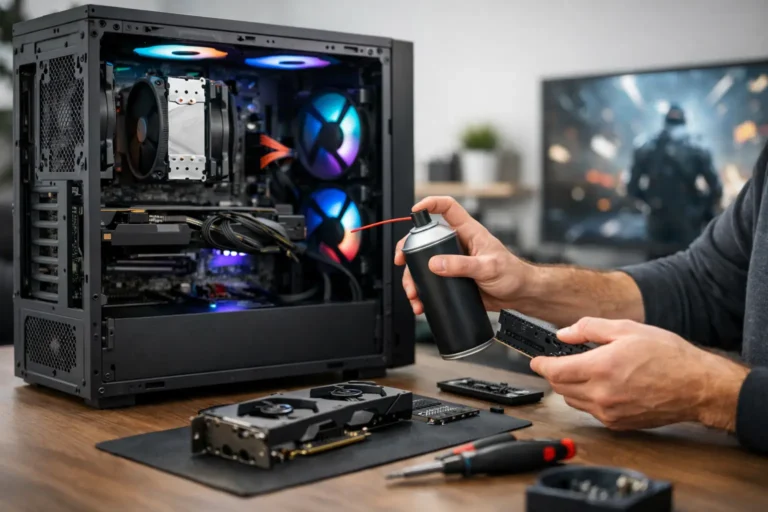
Cleaning the cooling system and renewing thermal paste can help in some cases, particularly where overheating causes throttling or fan noise. It is useful maintenance, but not always a headline upgrade. It delivers best value when there is an identified thermal issue rather than as a default spend on every machine.
The smartest approach is not chasing the longest specification sheet. It is making a modest machine dependable, quick enough, and fit for purpose. That is usually where older laptops earn their keep again.