How to Refurbish Office Desktops Properly
An office desktop that feels slow is not automatically ready for replacement. In many fleets, the processor, chassis and motherboard remain capable long after the original hard drive, memory allocation or Windows installation has become the bottleneck. Knowing how to refurbish office desktops properly means treating each unit as a controlled IT asset: secure the data, assess its remaining value, replace only what is justified, then test it for its next user.
For a business, school or reseller, the goal is not simply to make an old PC turn on. It is to produce a dependable device with a clear specification, known condition and a realistic role in the fleet.
Start with asset control and data security
Refurbishment starts before a screwdriver touches the case. Record the asset tag, serial number, make, model and current configuration. This establishes chain of custody and helps identify systems that are still within supportable age ranges.
Data security comes first. A desktop returned by a staff member may contain locally saved documents, browser profiles, cached credentials, accounting exports or personal information. Removing the drive is not the same as erasing it. Each storage device should be securely erased using an appropriate verified method, with an auditable record of the result where organisational policy or data protection requirements demand it.
If a drive cannot be securely erased, cannot be detected reliably or has failed, it should be physically destroyed through an approved process rather than passed on. The decision is straightforward: resale value never outweighs data risk.
It is also worth checking for removable media, secondary drives and cards left in internal readers. Older desktops often contain more storage than the original specification suggests.
Assess whether the desktop is worth refurbishing
Not every device deserves the same investment. A practical assessment considers performance, reliability, upgrade options and the likely workload. Enterprise desktops from Dell, HP and Lenovo are commonly designed for serviceability, which makes them strong refurbishment candidates when core components remain sound.
Check the processor generation, supported memory, drive interfaces, graphics requirements and available ports. A compact desktop with an older but capable Intel Core i5 processor, 8GB of RAM and a hard disk can often become an effective general office machine with an SSD and additional memory. That same system may not suit intensive design work, modern video production or workloads needing advanced graphics acceleration.
Age alone is not the deciding factor. A well-maintained business desktop with readily available parts may be a better proposition than a newer consumer model with limited upgrade paths. Equally, a system with recurring motherboard faults, unsupported hardware or excessive power consumption may cost more to maintain than it can return.
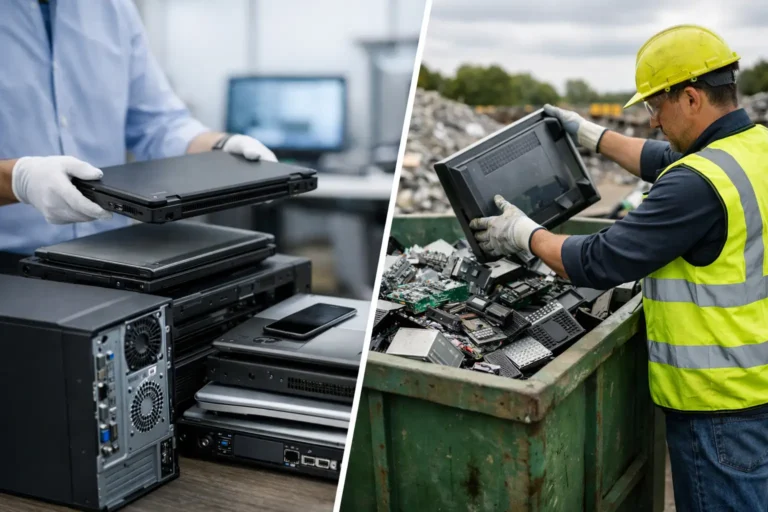
A useful triage is to place devices into three routes: redeploy, refurbish for resale, or recover usable parts and recycle responsibly. This avoids spending technician time on machines with no viable second life.
How to refurbish office desktops: clean, repair, upgrade
Once the desktop has passed assessment and data handling, move through the physical refurbishment process in a consistent order. External condition matters because it affects grading and buyer confidence, but internal condition matters more because it determines reliability.
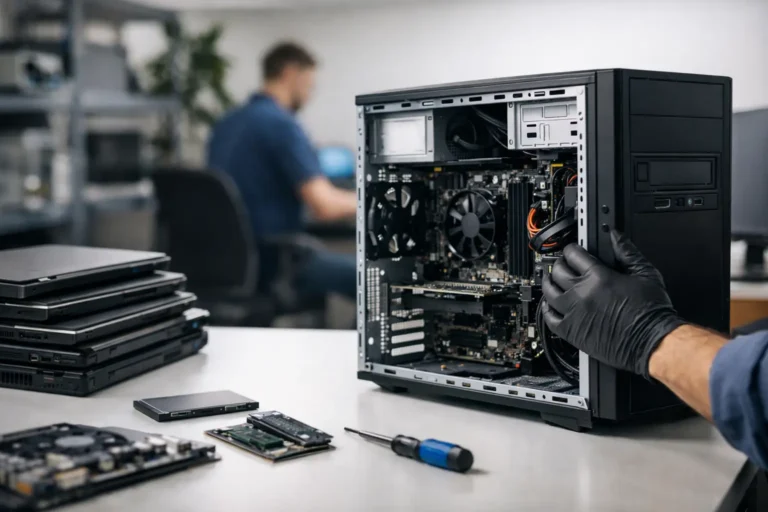
Begin with a careful clean. Remove dust from fans, heatsinks, vents and power supply intake areas using suitable anti-static methods. Inspect for damaged ports, cracked panels, missing feet, loose front I/O assemblies and signs of liquid exposure. Replace damaged components where parts are available and the repair is economically sensible.
Thermal performance deserves attention. Old or contaminated cooling arrangements can lead to high temperatures, fan noise and throttled performance. Check fan operation under load and renew thermal compound where diagnostics indicate poor heat transfer or where systems are being fully reconditioned.
For most office desktops, the highest-impact upgrade is replacing a mechanical hard drive with a quality SSD. It improves boot times, application launch speed and general responsiveness far more than minor processor changes. Use a drive with suitable endurance for the expected workload, particularly for systems handling frequent local writes.
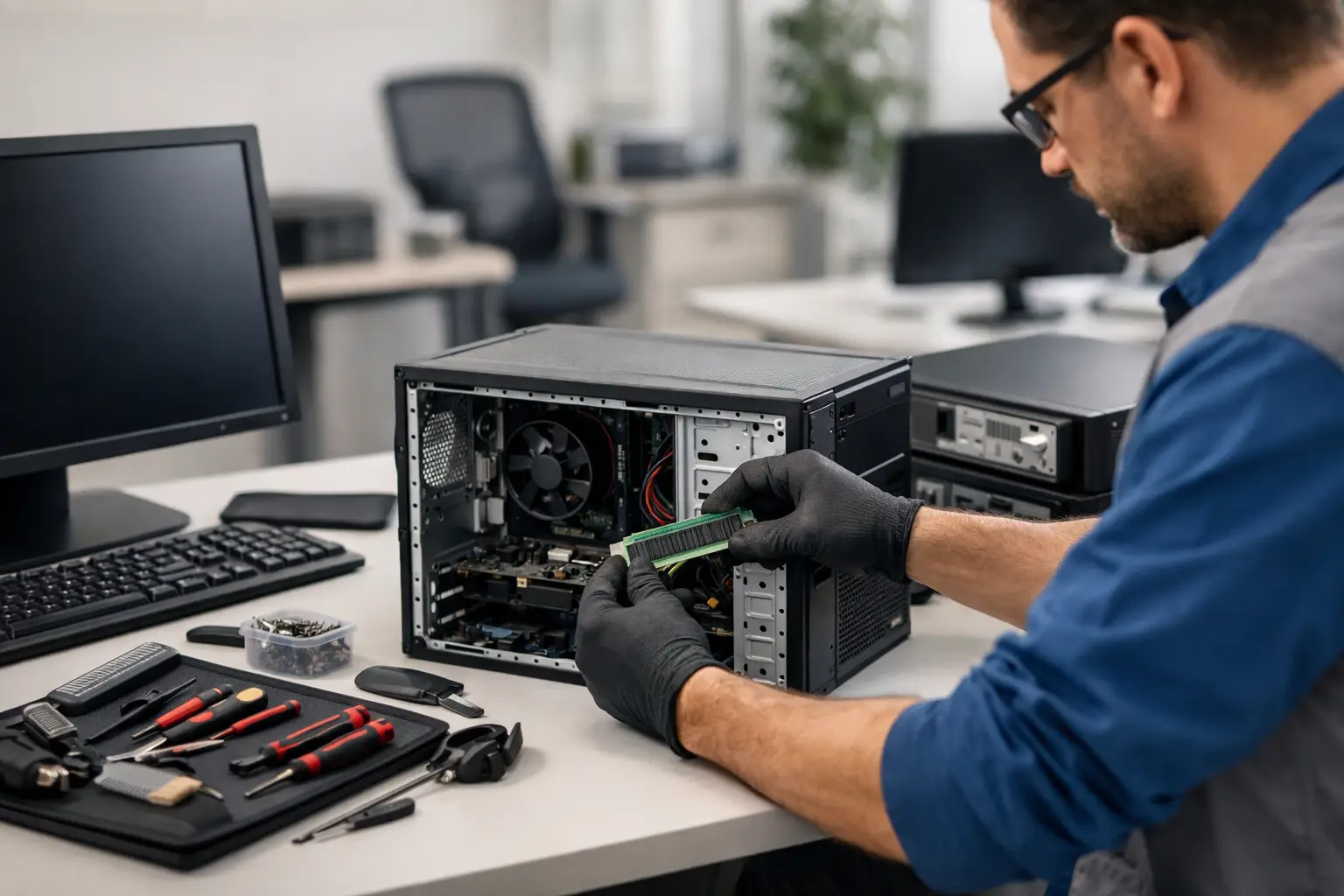
Memory should match the operating system and use case. While 8GB may remain adequate for basic web, email and document work, 16GB is a more practical baseline for users running multiple browser tabs, Microsoft Teams, spreadsheet work and standard business applications at the same time. Install matched modules where possible and verify that the full capacity is recognised.
Do not upgrade by habit. Adding memory to a desktop with a failing power supply or an unstable motherboard does not create a dependable device. Refurbishment works best when each replacement addresses a confirmed need.
Test hardware under realistic conditions
A desktop that boots to Windows has passed only the first check. Proper quality assurance tests the systems most likely to create issues after deployment: storage, memory, thermals, network connectivity, ports, audio and power stability.
Run diagnostic checks on the processor, RAM and storage health. Verify SSD performance and confirm no errors emerge during repeated read and write operations. Test every USB port, display output and network connection that will form part of the offered specification. Where Wi-Fi or Bluetooth is fitted, verify both functions rather than assuming the card works because it appears in Device Manager.
Stress testing is useful, but it should be proportionate. The aim is to expose overheating, sudden shutdowns, fan faults and intermittent instability without placing unnecessary strain on marginal hardware. Monitor temperatures and system behaviour during sustained load, then repeat basic operation after the machine has cooled.
Check the power supply carefully, especially in older small-form-factor systems. Symptoms such as random restarts, failure to wake, unexplained USB dropouts or inconsistent booting may point to a power issue rather than Windows. Replacing a faulty unit is preferable to releasing a desktop that fails intermittently in service.
Install a clean, supportable operating system
A refurbished desktop should leave with a fresh, properly activated operating system, relevant drivers and no previous user data. For most business-ready devices, this means a clean installation of a supported version of Microsoft Windows configured for the intended deployment.
Install manufacturer drivers where they improve stability or functionality, particularly chipset, graphics, audio and network drivers. Then apply current updates and confirm activation status. Avoid loading unnecessary trial software, browser extensions or third-party utilities. A clean installation reduces support calls and gives the next user a predictable starting point.
For managed environments, the desktop may need to be enrolled into an existing endpoint management platform, configured with standard security policies and prepared for named-user or shared-device use. This is where refurbishment becomes part of lifecycle management rather than a one-off repair task.
Chromium-based operating systems or Linux distributions can extend the usefulness of selected hardware, but only where they suit the organisation’s software, authentication and support model. They are not automatic substitutes for Windows in a fleet dependent on Windows-only applications.
Grade honestly and define the next use
Technical quality and cosmetic grade should be recorded separately. A desktop can be fully functional with visible cosmetic wear, while a clean-looking unit may still need more testing. Clear grading protects both the supplier and buyer by setting the right expectation before the device is deployed or resold.
Document the final specification: processor, memory, storage capacity, graphics capability, operating system, included power lead and any known cosmetic marks. If a desktop has a limitation, state it plainly. Transparency is more valuable than an optimistic description that creates avoidable returns.
For internal redeployment, match units to roles. A finance or administrative user may benefit from an SSD-equipped desktop and dual-monitor support, while a shared classroom machine may prioritise easy management and consistent specifications. Standardising configurations where possible simplifies support, spares planning and future refresh cycles.
For resale, retain evidence of secure erasure, test outcomes and grade. Professional refurbishment is not just parts replacement. It is the controlled process that makes the device safe, usable and accountable for its next owner.
Know when to stop
The most efficient refurbishment programmes have clear limits. If the required parts, technician time and expected warranty exposure exceed the desktop’s realistic resale or redeployment value, recover usable components and direct the remainder into responsible recycling. Extending lifespan is valuable, but only when the result remains reliable and supportable.
Refurb X Connect approaches desktop refurbishment as a connected lifecycle process: asset intake, secure handling, repair, testing, grading and onward use. That structure helps organisations reduce unnecessary e-waste without introducing uncertainty into their IT estate.
The useful question is not whether an older desktop can be made to work. It is whether it can be returned to service with enough performance, security and confidence to be worth relying on.